
Published: August 18, 2026
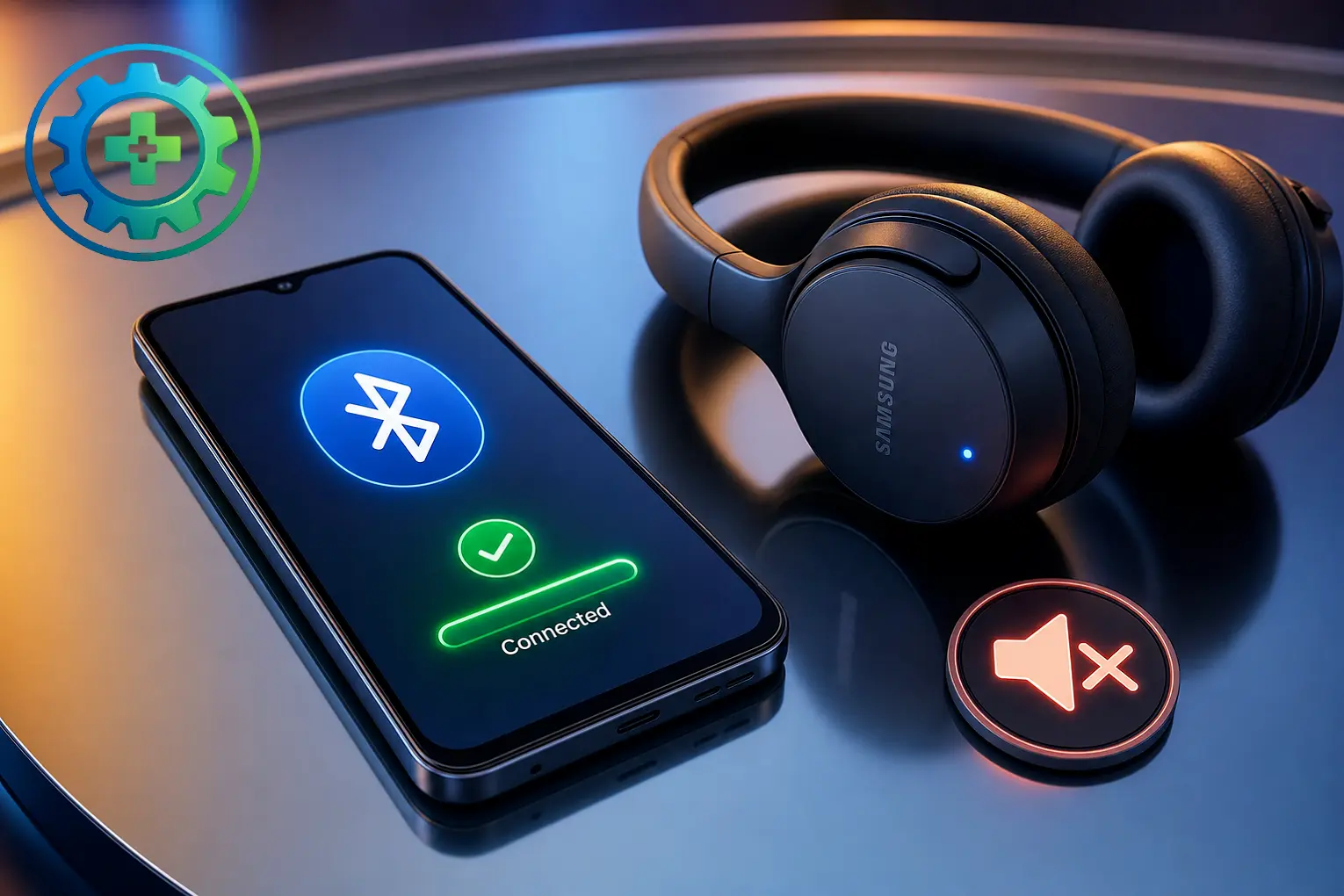
Your Bluetooth headphones appear connected, the Bluetooth icon is on, but when you play music or during a call, no sound comes from the headphones.
This usually means the connection is working, but the phone isn’t sending the audio to the headphones. A Bluetooth audio setting, the selected output device, or a temporary connection problem can cause it. If the headphones work properly with another device, that also helps narrow the problem down to the phone or its settings. It’s a different issue from your earbuds disconnecting during calls, though both often trace back to the same Bluetooth connection settings.
Check Where the Bluetooth Audio Is Going
On Android, open Bluetooth settings, find your connected headphones, and tap the gear icon or device settings button next to them. On some phones, you’ll see separate options for Media audio and Call audio.
Check that the options you need are enabled. Media audio controls music, videos, and other media, while Call audio is used for phone calls. If one of them is disabled, the headphones can still show as connected without handling that type of sound.
Now play a song and check whether you can hear it through the headphones. If music works but there is still no sound during calls, check the Call audio option as well.
The exact options and their names can vary between Android phones and software versions. If you don’t see these settings, don’t assume something is wrong with the headphones. Move to the next fix and check the audio output instead.
On iPhone, these Android Bluetooth toggles are not shown in the same way. If your iPhone says the headphones are connected but no sound comes through them, check the selected audio output during playback or a call.
Restart Bluetooth on Your Phone
Turn Bluetooth off, wait a few seconds, and turn it back on. Then connect your headphones again and play a song or make a call to check if the sound is back.
Forget the Device and Pair Again
If the first step doesn’t fix the problem, forget the paired device and connect it again. On Android, tap the gear icon next to your headphones and choose Forget. On iPhone, open Settings > Bluetooth, tap the “i” icon next to the device, and choose Forget This Device.
After that, put your headphones or speaker into pairing mode and connect them again as you did the first time. Once they are connected, check the sound again.
Check the Audio Output
During a call or while playing music, open the audio output option and select your Bluetooth headphones if they are not already selected.
On iPhone, open Control Center and check the audio output from the media controls. On Android, this option may appear near the volume controls or in the notification panel, depending on the phone.
After selecting your headphones, check the sound again.
Update Your Phone’s Software
Updating your phone keeps its software up to date. Samsung recommends checking for software updates when troubleshooting Bluetooth problems.
On the Samsung Galaxy A15 5G, open Settings > Software update > Download and install. If an update is available, tap Download and install and follow the instructions on the screen. The phone may restart after the update is installed.
FixerLab tested this on Samsung Galaxy A15 5G (SM-A156B). If you’re using a different phone or model, the menu may look slightly different, but the software update option is usually in the same area. Samsung also provides more details in its official Bluetooth troubleshooting guide.
FixerLab tested this on Galaxy A15 5G SM-A156B. If you’re using a different Phone or model, the menu may look slightly different, but the often option is usually in the same area.
Reset Your Earbuds or Speaker
The reset process varies by model. Check the instructions for your specific earbuds or speaker to find the correct reset method. After resetting the device, put it back into pairing mode and connect it to your phone again.
Test With a Different Device
Try connecting your earbuds or speaker to another phone, tablet, or laptop. If they work fine there, the issue is probably with the settings on your original phone, not the Bluetooth accessory. But if you get no sound on any device you try, then the accessory itself is likely the problem. It could be a worn-out speaker driver or a firmware issue, in which case you may need to get it repaired or replace it.
Clear the Bluetooth Cache on Android
Your phone stores temporary Bluetooth data in its cache to help connections work properly. Over time, though, some of that old data can become corrupted and start causing connection problems. That’s why clearing the old Bluetooth cache can help resolve these issues.
When Calls Have No Sound But Music Works Fine
If music works normally but you can’t hear the other person during calls, the problem is usually with the Bluetooth call audio profile, known as HFP. Music uses a different profile called A2DP, so one can work properly while the other has a problem. The Bluetooth SIG lists these as separate Bluetooth audio profiles. This can happen with older earbuds or cheaper Bluetooth accessories, especially when their call-handling firmware isn’t working properly. If your earbuds have a companion app, check for a firmware update and install it if one is available. If there’s no app, try resetting the earbuds and pairing them with your phone again, as explained in Fix 5.

- Galaxy S26 Ultra Wireless Charging Stuck at 10W/15W - September 17, 2026
- How to Fix Google Maps Showing Wrong Directions and Inaccurate Location - September 13, 2026
- iPhone 16 Camera Not Working? Fix Black Screen, Crashes & Blurry Photos - September 9, 2026
