
Published: August 12, 2026
After updating the iOS software, some iPhones start draining the battery quickly, because of which the phone starts showing a low-battery warning. Because of this, users panic and immediately search for a way to solve the issue.
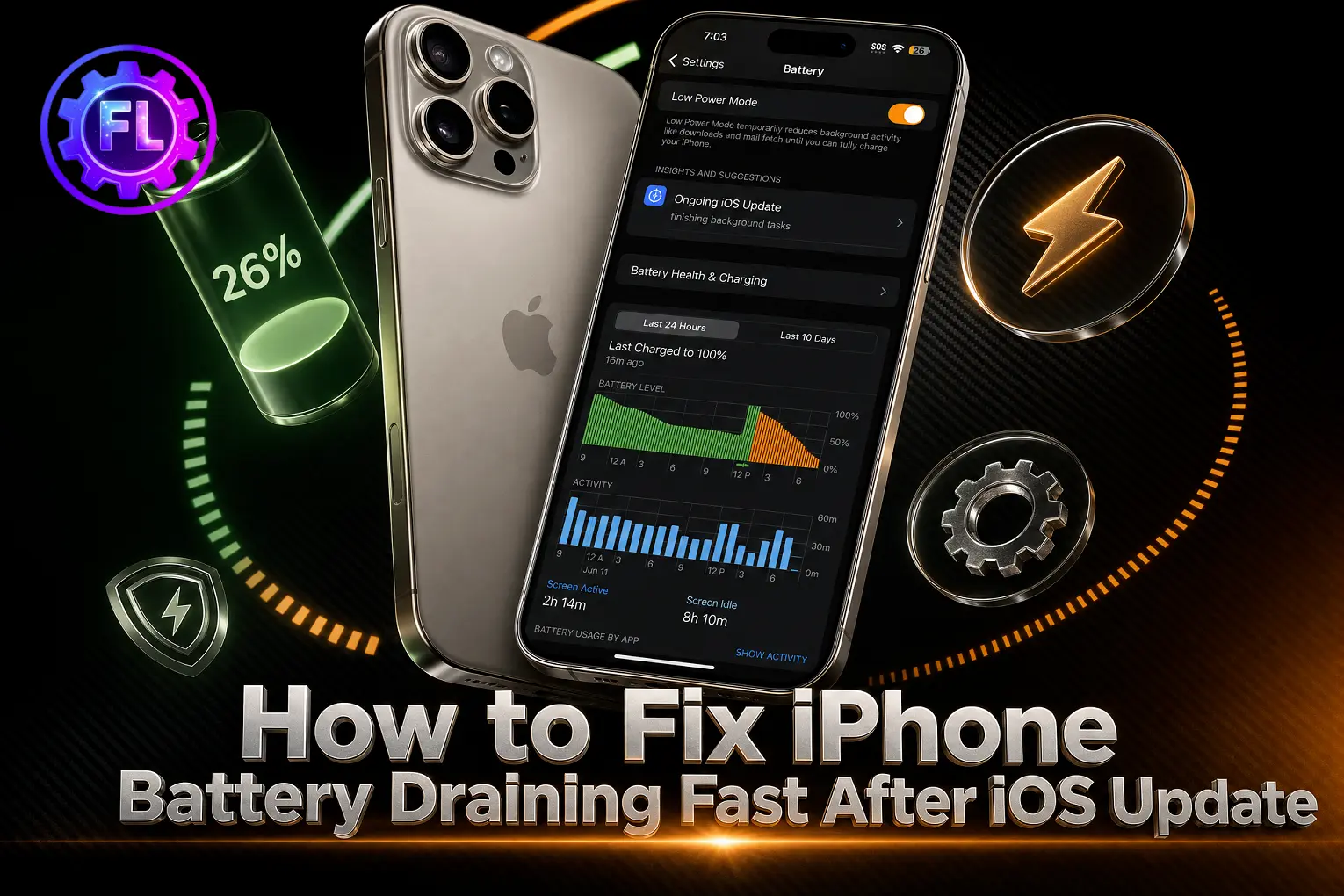
However, after the update, the internet stays connected, and the iPhone also keeps doing some work in the background. This extra activity can make the device warm and cause the battery to drain faster than usual. Instead of changing several settings, fully charge the iPhone battery to 100% once. In most cases, the issue gets resolved after fully charging the iPhone and giving it some time.
Apart from this, what causes battery draining, how to verify whether the battery is still healthy or has become weak, and how to fix it with other methods are all covered in this guide. You will find all the fixes for this issue in the content below.
Is Battery Drain Normal After an iOS Update?
Yes, some battery drain after an iOS update is normal. Apple has mentioned on its official website that certain tasks related to the update can continue in the background and affect battery life and thermal performance for a while. Apple recommends waiting a few days after an update and then checking the battery again.
There is no fixed number of hours that applies to every iPhone. If the battery is still draining unusually fast after a few days, check the Battery section to find out what is using the most power.
There is no fixed number of hours that applies to every iPhone. If the battery is still draining unusually fast after a few days, check the Battery section to find out what is using the most power.
Continuous background verification during app setup can drain your battery quickly, often resulting in sideloaded apps not installing until system resources stabilize. If your iPhone internet is not working after an update, our guide on cellular data stopped working also includes a solution for this problem.
Check Battery Usage After an iOS Update
The first thing to check after an iOS update is which apps and activities are using the most battery. iPhone shows this information in the Battery section, so you can see whether the battery is draining because of one particular app or because of normal system activity.
- Open Settings.
- Battery.
- Check the Daily Usage section to compare your battery use with previous days.
- Scroll down to App and System Activity or the battery usage details shown on your iPhone.
- Tap View All Battery Usage if the option appears to see more details.
If one app is using much more battery than usual after the new update, especially with a high amount of Background Activity, that app may be contributing to the drain. Open the App Store and check whether an update is available for that app.
If the Battery screen shows an Ongoing iOS Update insight, the iPhone is still completing work related to the update. In that case, give the phone some time instead of changing several settings at once.
Reduce Background Activity to Stop Battery Drain
If an app is using a large amount of battery in the background, reducing its background activity can help stop unnecessary battery drain after an iOS update.
- Open Settings.
- Tap General.
- Tap Background App Refresh.
- Review the apps that are allowed to refresh in the background.
- Turn off Background App Refresh for apps that do not need to update when you are not using them.
You do not need to turn this setting off for every app. Focus on apps that you rarely use or that already appear high in your Battery usage. This keeps the setting targeted instead of changing the whole system just to fix battery drain.
Turn On Low Power Mode
After the battery is discharged, it is better to keep the iPhone on a lower power load for some time.
- Open Settings.
- Tap Battery.
- Tap Power Mode.
- Turn on Low Power Mode.
Turning on Low Power Mode reduces battery consumption, so it is better to keep it on until the battery returns to its normal performance.
Use Adaptive Power If Your iPhone Supports It
Adaptive Power is available in iOS 26 on certain iPhone models. It can help reduce battery use by making small changes when the phone is using more power than usual.
- Open Settings.
- Battery.
- Power Mode.
- Turn on Adaptive Power if the option is available.
Adaptive Power can slightly reduce brightness and allow some background activities to take longer when extra battery saving is needed. If the battery reaches 20%, it can also turn on Low Power Mode automatically.
Adaptive Power is available on iPhone 15 Pro, iPhone 15 Pro Max, iPhone 16 models, iPhone 17 models, and iPhone Air with iOS 26 or later. On iPhone 17 models and iPhone Air, it is turned on by default, while supported older models require you to turn it on manually.
Review Location Access
Some apps keep checking your location through Location Services even when they do not really need it. It is better to turn off location access for those apps. If you need the location feature later, you can allow it again.
- Settings.
- Privacy & Security.
- Location Services.
- Check which apps have access to your location.
- For apps that do not need constant access, select While Using the App or Ask Next Time.
This can reduce the battery load because those apps will no longer keep checking your location in the background.
Check Display Brightness and Auto-Lock
- Open Settings.
- Accessibility.
- Display & Text Size.
- Make sure Auto-Brightness is turned on.
- Go back to Settings and tap Display & Brightness.
- Tap Auto-Lock and choose a shorter time if the screen stays on for too long.
Update Your Apps
Some apps may not work efficiently with a newer iOS version if they are still using an older app version. Updating them can fix app-related battery drain.
- Open the App Store.
- Picture at the top.
- Scroll down to check for available app updates.
- Update All or update the apps individually.
After updating the apps, check the Battery section again. If one app was using unusually high battery, see whether its battery usage has returned to normal.
Force Restart the iPhone
If the battery is still draining unusually fast, a force restart can help when a background process becomes stuck. It does not erase your data.
- Volume Up.
- Volume Down.
- Press and hold the Side button until the Apple logo appears.
iPhone 7 and iPhone 7 Plus
Press and hold the Side button and Volume Down button together until the Apple logo appears.
iPhone 6s and Earlier and iPhone SE (1st Generation)
Press and hold the Home button and the Side or Top button together until the Apple logo appears.
After the iPhone restarts, use it normally and check whether the battery drain has improved.
Check Battery Health
Checking the battery health gives you a better idea of what you should do next. You can see whether the battery is still working normally, needs attention, or may need to be replaced.
To check it:
- Settings.
- Battery.
- Battery Health on iPhone 15 and later.
- iPhone 14 and earlier, tap Battery Health & Charging.
- Check Maximum Capacity and Peak Performance Capability.
Maximum Capacity shows the battery’s current capacity compared with when it was new. The percentage normally decreases as the battery gets older, so a lower number by itself does not mean the battery needs to be replaced.
Apple says iPhone 14 and earlier batteries are designed to retain up to 80% of their original capacity after 500 complete charge cycles, while iPhone 15 models are designed to retain up to 80% after 1,000 complete charge cycles under ideal conditions. The actual capacity can vary depending on how the phone is used and charged. You can read more about this in Apple’s official battery performance guidance.
Also check Peak Performance Capability. This section tells you whether the battery is currently supporting normal peak performance or whether iOS has applied performance management after an unexpected shutdown caused by the battery being unable to provide enough power.
If the screen says “Your battery’s health is significantly degraded,” the battery has become significantly worn. Apple recommends considering battery service in this situation, and a replacement battery can restore full performance and capacity.
Reset All Settings
Resetting all settings can help when a system setting is causing unexpected battery usage. It returns the settings to their defaults without deleting your personal data.
- Settings.
- General.
- Transfer or Reset iPhone.
- Reset.
- Reset All Settings.
- Enter your passcode if asked and confirm the reset.
This resets saved Wi-Fi networks, Bluetooth connections, privacy settings, and other system preferences. Your photos, videos, apps, messages, and other personal files will not be deleted.
After the reset, charge the iPhone normally and use it for some time to check whether the battery drain has improved.

- Face ID Not Working After iOS Update? How to Reset and Fix - September 29, 2026
- Phone Speaker Sound Low After Water Contact — How to Fix It - September 26, 2026
- Galaxy S26 Ultra Wireless Charging Stuck at 10W/15W - September 17, 2026
