
Published: September 08, 2026
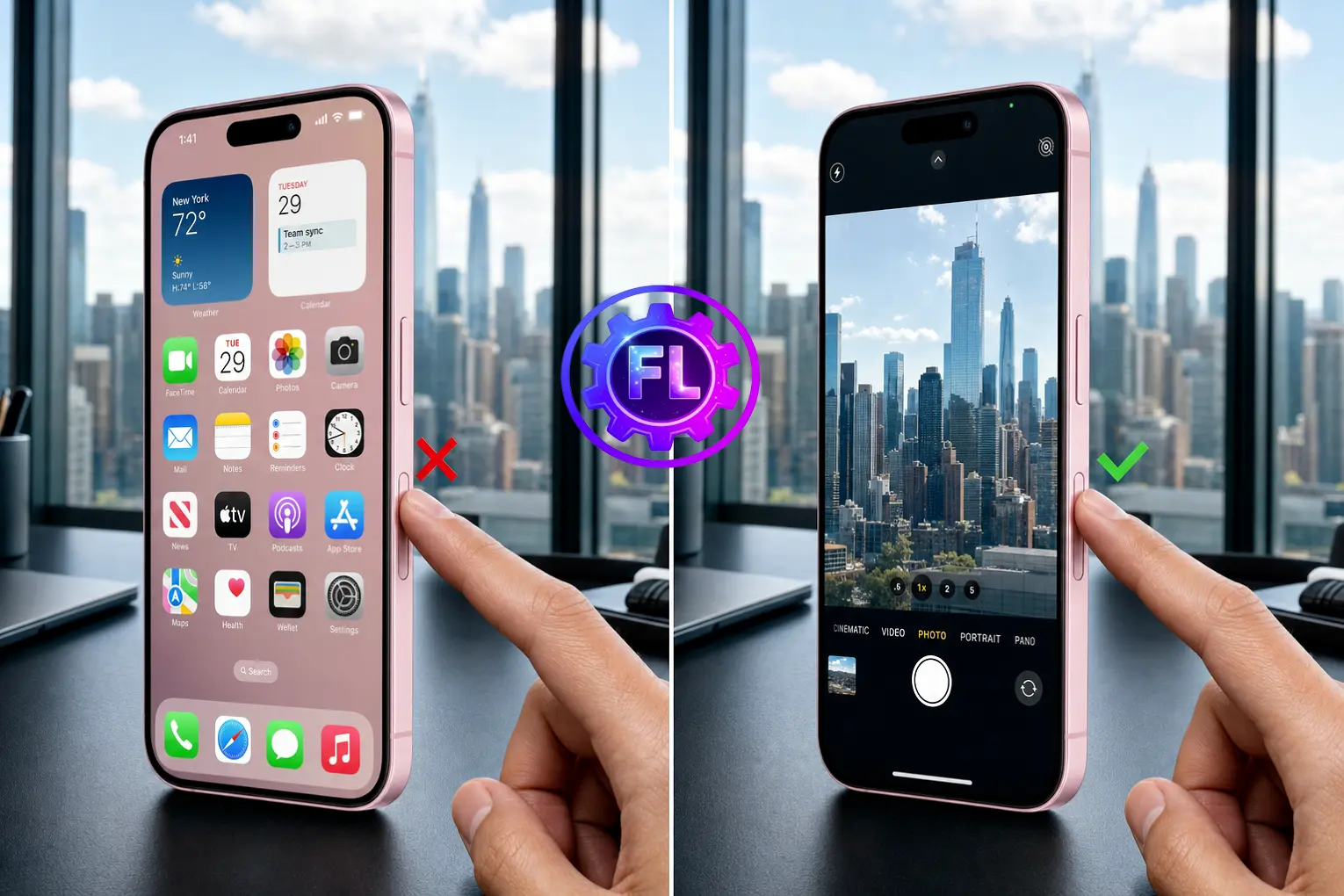
You press the Camera Control button on your iPhone 16, but the camera does not open. Sometimes the camera opens, but the button does not respond when you try to take a photo or adjust the zoom. If you’re facing any of these problems with the Camera Control button, this guide covers the fixes you need.
If the Camera app itself is not working—for example, it shows a black screen, crashes, or takes blurry photos—while the Camera Control button works normally, that’s a different issue. You can follow our Camera not working guide for those problems.
If the Camera Control button is not responding, start with the quick fix below.
Quick Fix
- Swipe up from the bottom of the screen and pause to open the App Switcher. Close the Camera app, open it again, and press the Camera Control button.
- Remove your iPhone case, especially if it is thick or has raised edges around the Camera Control button.
- Go to Settings > Camera > Camera Control and confirm that Camera is selected, not None. If None is selected, tap Camera to turn it back on.
- Go to Settings > Accessibility > Camera Control and make sure Camera Control is turned on. If you use the light-press or swipe gestures, make sure Light-Press and Swipe are enabled as well.
If Camera Control still does not respond, try the deeper fixes below.
Why the Camera Control Button Stops Responding
Camera Control can stop responding for several reasons, such as the wrong camera option being selected, a phone case pressing against the button, a temporary software issue, or physical damage after a drop.
Another common situation is when the button responds to a swipe, so you can adjust the zoom or exposure, but pressing it does not open the camera or take a photo.
Fix the Camera Control Assignment
Go to Settings > Camera > Camera Control and check which option is selected. You can set Camera Control to open Camera, Code Scanner, Magnifier, or a supported third-party camera app. If None is selected, clicking Camera Control will not open an app.
If it is set to None or an app you do not use, select Camera and test the button again.
Adjust Sensitivity in Accessibility
Open Settings > Accessibility > Camera Control and make sure Camera Control, Light-Press, and Swipe are enabled.
Check If a light press is not working properly, adjust Light-Press Force. If a double light-press is not recognized, change Double Light-Press Speed.
If Swipe is turned off, you cannot use it to access controls such as Zoom and Depth. You can also check Apple’s Camera Control accessibility settings for these options.
Turn Off “Require Screen On”
If Camera Control doesn’t open the camera when the screen is off, turn off Require Screen On.
- Open Settings.
- Tap Display & Brightness.
- Scroll down to Camera Control and switch off Require Screen On.
Note: Depending on your iOS version, the Require Screen On setting may appear in a different location.
Once turned off, Camera Control can open the camera directly, even when the screen is off.
Update iOS and Restart Your Phone
Open Settings > General > Software Update and install any available update. Once done, restart your iPhone. A restart can resolve temporary software glitches that may affect Camera Control.
Reset All Settings on iPhone 16
If Camera Control still isn’t working after trying the fixes above, you can reset your iPhone’s settings without deleting your personal data.
Open Settings > General > Transfer or Reset iPhone > Reset > Reset All Settings.
This restores settings such as Wi-Fi networks, keyboard settings, and layout preferences to their defaults. Your photos, videos, apps, and other personal data will stay on the iPhone.
If You Still Want to Factory Reset iPhone 16
If Reset All Settings doesn’t fix the problem, a factory reset is another option. It lets you start your iPhone fresh with its original factory settings.
Keep in mind that a factory reset deletes your installed apps, photos, videos, settings, and other data from the iPhone. Back up your iPhone first using iCloud or a computer so you can restore your data after the reset.
- Open Settings.
- Tap General.
- Select Transfer or Reset iPhone.
- Tap Erase All Content and Settings.
- Tap Continue and follow the on-screen instructions.
After the reset, you can restore your data from your backup.
When It’s Likely a Hardware Problem
If the button stays unresponsive even without a case, after you’ve checked the relevant settings and updated iOS, a hardware problem becomes more likely. This is especially true if the iPhone was recently dropped or exposed to water.
In that case, contact Apple Support or visit an Apple Authorized Service Provider to have the Camera Control checked.
FAQ
Can I turn off Camera Control’s touch-sensitive controls without disabling the button?
Yes. Go to Settings > Accessibility > Camera Control and turn off Light-Press and Swipe, while leaving the main Camera Control toggle on. This keeps the click working—it still opens the camera and takes photos—but stops the touch-sensitive controls from appearing when you accidentally touch the button. If you’d rather disable Camera Control entirely, turn off the main toggle instead.
What’s the difference between a light press and a full click on Camera Control?
A full click opens the assigned app or takes the shot. A light double-press opens the camera controls overlay, where you can select options such as zoom, exposure, and depth. You can then swipe on Camera Control to adjust the selected setting.
Can Camera Control lock focus and exposure on iPhone 16?
Yes. You can enable Lock Focus and Exposure in the Camera Control settings. Once enabled, lightly press and hold Camera Control to lock the focus and exposure while taking a photo or recording video.

- Galaxy S26 Ultra Wireless Charging Stuck at 10W/15W - September 17, 2026
- How to Fix Google Maps Showing Wrong Directions and Inaccurate Location - September 13, 2026
- iPhone 16 Camera Not Working? Fix Black Screen, Crashes & Blurry Photos - September 9, 2026
