
Published: July 4, 2026
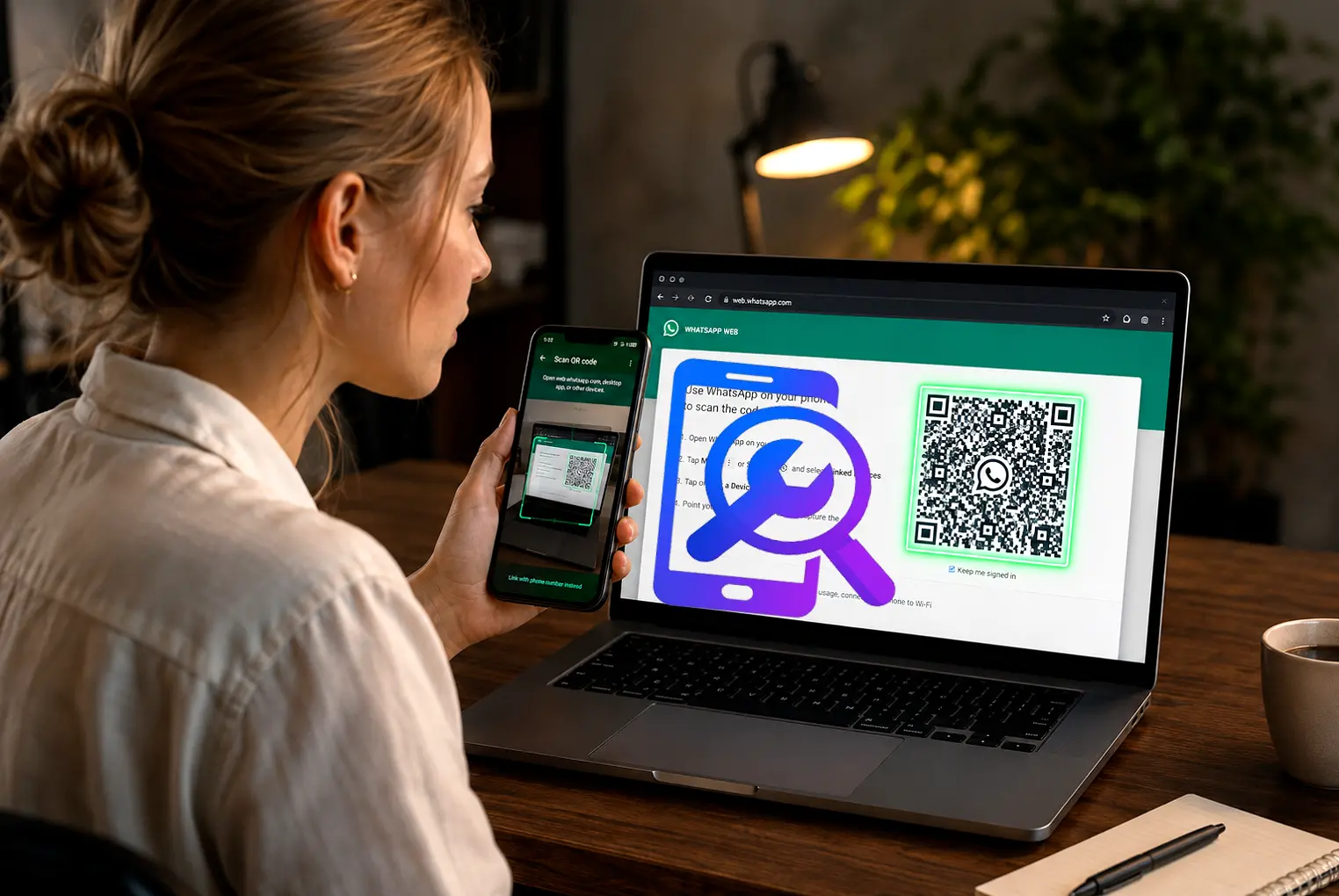
If the WhatsApp Web QR code won’t scan on your laptop or PC, check your camera permissions, adjust a few settings, and try linking again. Below are 10 solutions for this problem.
A dirty camera lens is one of the most overlooked causes. Smudges or dust on your phone’s lens keep it from reading the QR code clearly. Wipe the lens before moving on to the steps below.
Why the WhatsApp Web QR Code Won’t Scan
A few things typically cause this:
- Camera permissions are off. WhatsApp needs camera access to read the QR code. If access was denied at some point, the scanner won’t work.
- Multiple WhatsApp Web sessions are active. If you’re already logged in on another browser or device, a new QR code can fail to link.
- Old browser cache or cookies. Your desktop browser may be holding onto outdated WhatsApp Web data from a previous session.
- Data Saver or Battery Saver mode is on. These modes limit background processes, including the camera feed WhatsApp needs to scan.
- Corrupted app cache. Temporary files on your phone can interfere with how the camera reads the QR code.
- Outdated WhatsApp version. Older builds sometimes carry scanner bugs that later updates correct.
- Weak or unstable internet connection. Linking WhatsApp Web requires your phone and computer to communicate over the internet, not just be near each other.
The steps below address each cause directly.
Note: Before scanning the QR code, check that your WhatsApp account isn’t banned or restricted. If it is, you’ll need to fix the account issue first; once access is restored, you can scan the QR code again. If you need help with the ban or restriction, How to Unban WhatsApp Account 2026 explains what to do next.
Step-by-Step Fixes
Fix 1: Force Close and Reopen WhatsApp
Android: Swipe up from the bottom, find WhatsApp among your recent apps, and swipe it away.
iPhone: Swipe up from the home bar, locate WhatsApp, and swipe it off the screen.
Wait 10 seconds, then reopen WhatsApp and try scanning again. This restarts the camera process and clears minor glitches that can block QR code scanning.
Fix 2: Check Camera Permissions
WhatsApp can’t scan a QR code without camera access.
Android
- Head to Settings > Apps > WhatsApp.
- Tap Permissions.
- Set Camera to Allow.
iPhone
- Open Settings > Privacy & Security > Camera.
- Find WhatsApp and toggle it ON.
An accidentally denied camera permission is a common reason WhatsApp Web fails to link. See Apple’s camera permissions guide for more detail.
Fix 3: Use Desktop Site Mode (If Linking From a Phone Browser)
If you’re loading WhatsApp Web through a browser on your phone instead of a computer, switch to Desktop Site mode first.
- Launch web.whatsapp.com in Chrome or another browser.
- Tap the three-dot menu and select Desktop Site.
- Wait for the full desktop layout to load.
- Open WhatsApp > Linked Devices and scan the QR code.
Desktop Site mode loads the complete WhatsApp Web layout, which avoids problems caused by the limited mobile version.
Fix 4: Clear the WhatsApp App Cache
Cache files can interfere with how WhatsApp processes the camera feed during scanning. Clearing them doesn’t delete your chats or media.
Android
- From Settings, open Apps > WhatsApp.
- Tap Storage & Cache.
- Tap Clear Cache.
iPhone
iPhones don’t offer a per-app cache option. Offload WhatsApp instead:
- Navigate to Settings > General > iPhone Storage.
- Select WhatsApp and tap Offload App.
- Reinstall it from the App Store.
Fix 5: Log Out of All Other WhatsApp Web Sessions
An active WhatsApp Web session on another device can block a new QR code from linking.
- On your phone, open WhatsApp.
- Tap the three-dot menu (Android) or Settings tab (iPhone).
- Select Linked Devices.
- Tap Log Out From All Devices.
- Give it a moment, then scan the QR code again.
If you use WhatsApp Web across a work laptop, home PC, or tablet, logging out of Linked Devices clears the conflict and lets a fresh session connect.
Fix 6: Turn Off Data Saver and Battery Saver
QR code scanning needs a stable connection and active camera processing. Both of these modes restrict that.
Android
- Access Settings > Network & Internet > Data Saver, and turn it off.
- Under Settings > Battery, open Battery Saver and turn it off.
iPhone
- Select Settings > Battery > Low Power Mode, and toggle it off.
Switch these back on afterward if battery life is a concern.
Fix 7: Clear Browser Cache and Cookies (or Switch Browsers)
Old cached data in your desktop browser can prevent a fresh WhatsApp Web QR code from loading.
- Access your browser settings and select Clear Browsing Data (or Privacy and Security).
- Choose Cookies and Cached Files.
- Clear the data and reload web.whatsapp.com.
If that doesn’t help, try a different browser:
- Firefox
- Edge
- Safari
See Google Chrome’s help page for exact steps on removing cache and cookies.
Fix 8: Update WhatsApp to the Latest Version
An outdated WhatsApp build can carry scanner bugs that later releases correct.
- Launch the Google Play Store (Android) or App Store (iPhone).
- Search for WhatsApp.
- Tap Update if one is listed.
- Reopen WhatsApp and scan the QR code again.
Fix 9: Check Your Internet Connection
WhatsApp Web needs both your phone and your computer online — they don’t have to share the same Wi-Fi network, but a weak or unstable connection on either device can cause the QR code scan to fail or hang.
- Confirm your phone has a working Wi-Fi or mobile data connection.
- Confirm your computer is online.
- If either connection is weak, switch networks or move closer to your router.
- Reload web.whatsapp.com and try scanning again.
Fix 10: Restart Your Phone
If nothing else has worked, restart your device.
- Press and hold the power button.
- Select Restart.
- Open WhatsApp and scan the QR code once more.
A restart clears background processes, resets your network connection, and refreshes the camera driver.
Advanced Fix: Isolate the Problem With Your Camera App
If none of the steps above work, use this to narrow down the cause:
- Launch your phone’s regular camera app.
- Point it at the QR code on your desktop screen.
- If the camera app reads it and shows a link, your camera hardware is fine — the problem sits with WhatsApp’s built-in scanner, not the lens.
If the code scans fine but your chats then freeze on “Syncing messages” instead of loading, that’s a different issue — see why WhatsApp Web gets stuck syncing and fix it.
Quick Reference: All 10 Fixes
| Step | Action |
|---|---|
| 1 | Force close and reopen WhatsApp |
| 2 | Check camera permissions (Settings > Apps > WhatsApp) |
| 3 | Use Desktop Site mode in your phone’s browser |
| 4 | Clear the WhatsApp app cache (Android) or offload the app (iPhone) |
| 5 | Log out of all other Linked Devices |
| 6 | Turn off Data Saver and Battery Saver |
| 7 | Clear browser cache and cookies, or switch browsers |
| 8 | Update WhatsApp to the latest version |
| 9 | Check your internet connection |
| 10 | Restart your phone |
FAQ
Will clearing the WhatsApp cache delete my chats?
No. Clearing cache only removes temporary files — your messages, photos, and videos stay intact. Avoid the “Clear Data” option, which erases everything.
Why does WhatsApp Web say “QR code expired”?
The QR code on your desktop screen refreshes every 60 seconds. If you wait too long to scan it, the code expires. Refresh the desktop page and scan the new code right away.
Can I scan the WhatsApp Web QR code from a saved photo?
No. WhatsApp Web only accepts a live scan through the camera. Scanning a stored image isn’t supported.
Why does WhatsApp Web work on one device but not another?
WhatsApp allows multiple Linked Devices sessions at once. A session on another device can conflict with a new QR code. Log out of all devices (Fix 5) and try linking again.
Is WhatsApp Web safe to use on a public computer?
Yes, provided you log out properly when you’re done. Go to Linked Devices on your phone and tap Log Out — closing the browser tab alone doesn’t end the session.
These 10 fixes cover the most common reasons WhatsApp Web won’t link, from permission issues to session conflicts. Work through them in order to narrow down the cause.
For official troubleshooting steps directly from WhatsApp, see the WhatsApp Help Center.

- Face ID Not Working After iOS Update? How to Reset and Fix - September 29, 2026
- Phone Speaker Sound Low After Water Contact — How to Fix It - September 26, 2026
- Galaxy S26 Ultra Wireless Charging Stuck at 10W/15W - September 17, 2026
