
Published: November 10, 2026
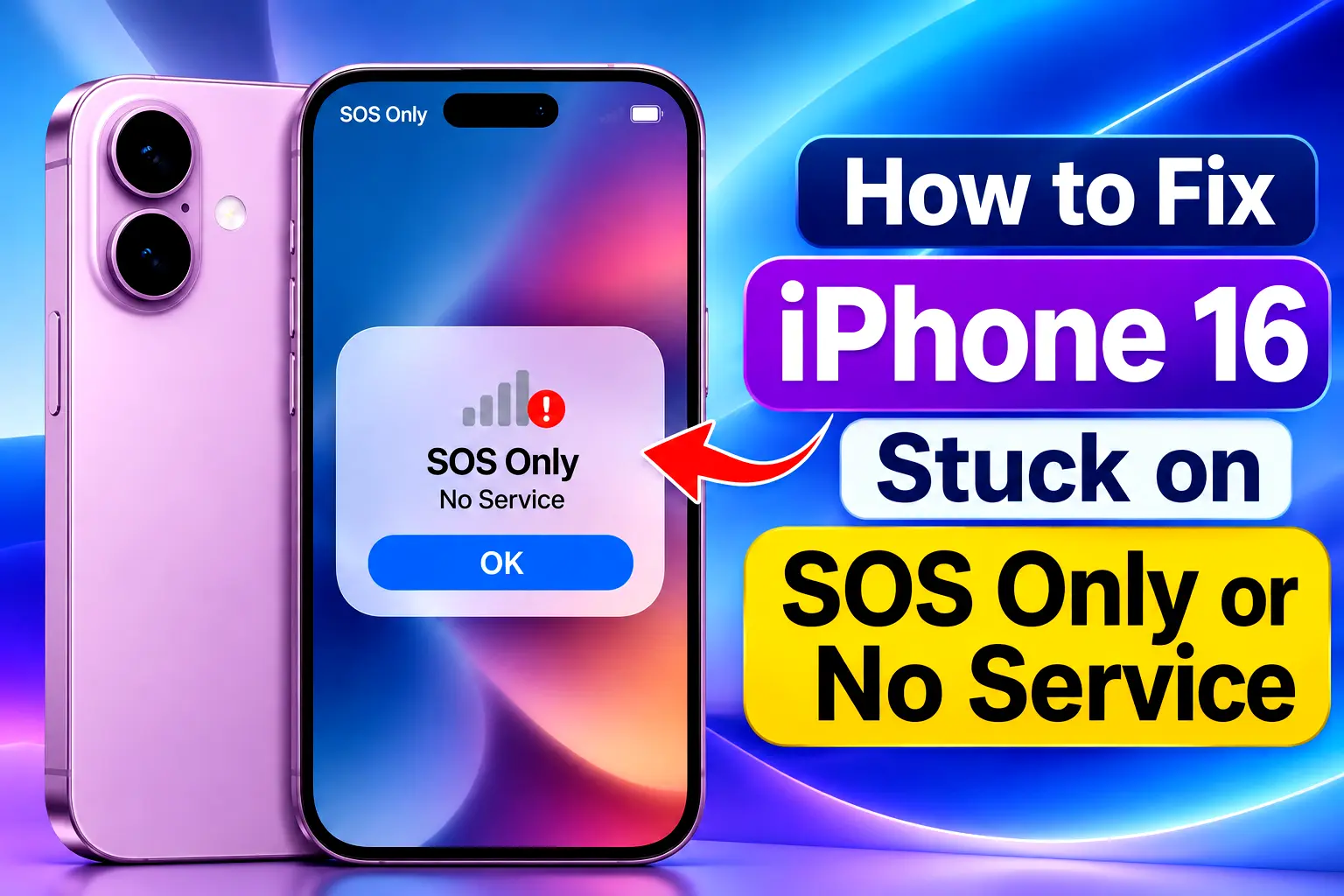
Your iPhone 16 suddenly shows SOS Only, No Service, or Searching instead of its usual network signal. You can’t make normal calls or send text messages.
The problem may be related to your carrier, SIM card, account, or iPhone settings. Here are the steps to identify the cause and get your cellular service working again.
Quick Fix
If you only have a minute, try these in order:
- Turn on Airplane Mode, wait at least 15 seconds, then turn it off.
- Restart your iPhone.
- Open Settings > Cellular and make sure your line is turned on.
- Still stuck? Contact your carrier and ask whether your account is active and whether there is an outage in your area.
Why Your iPhone 16 Shows SOS Only or No Service
What SOS Only, No Service, and Searching Mean
These three labels look similar but say slightly different things:
- SOS or SOS Only: Your iPhone isn’t connected to your own carrier, but emergency calls may still be possible through other carrier networks in supported regions. Apple lists Australia, Canada and the United States.
- No Service: Your iPhone isn’t connected to a cellular network.
- Searching: The phone is still trying to find and register on a network.
It also helps to separate this from a different problem. SOS Only, No Service and Searching mean the phone isn’t connected to a carrier network, which is not the same as having signal bars but no internet. If you still see signal bars but web pages and apps won’t load over mobile data, you are dealing with a cellular data issue instead, and that guide covers it.
Common Reasons Cellular Service Stops Working
Several things can break the connection, and not all of them involve the phone’s hardware:
- You are in a weak coverage area, or your carrier has an outage.
- The cellular plan is inactive, suspended or expired.
- The SIM or eSIM line is turned off, or the phone doesn’t recognize it.
- Carrier settings or iOS are out of date.
- Data roaming is off while you are abroad.
- The phone was bought in another country and your local rules require IMEI registration.
Check These Things Before Changing iPhone Settings
It’s tempting to jump straight to a network reset. Resist that for a few minutes. Changing settings on your phone can’t fix a tower outage or an unpaid plan, and a reset also wipes saved network details you may not want to re-enter. A few quick checks can tell you whether the problem is even on your phone.
Confirm Your Carrier Has Network Coverage
Look at another phone on the same carrier in the same spot. If it has no service either, the cause is likely the area or an outage. Basements, elevators, thick-walled buildings and remote roads are common dead zones, so step outside or move to a window before you judge. Your carrier’s outage page or app, opened over Wi-Fi, can also confirm a local problem.
Make Sure Your Cellular Plan Is Active
A missed payment, an expired prepaid plan or a suspended line can all cut service while the phone looks perfectly fine. Sign in to your carrier’s app or website over Wi-Fi and check that the account is active and the right plan is attached to your number.
Check Whether the SIM or eSIM Is Recognized
Open Settings > Cellular and look for your line. If the line is listed but switched off, that’s an easy fix (see step 3 below). If no line shows up at all, the phone isn’t seeing your plan, and the carrier will need to help set up the eSIM or confirm the SIM.
8 Ways to Restore Cellular Service on iPhone 16
1. Refresh the Cellular Connection With Airplane Mode
Open Settings, turn on Airplane Mode and leave it on for at least 15 seconds. Then turn it off. This makes the phone drop its connection and look for the network again, which may clear a stale connection without changing anything else.
2. Restart Your iPhone to Reconnect to the Network
Hold the Side button and either Volume button until the power-off slider appears, drag it, wait about 30 seconds, then hold the Side button until the Apple logo appears. A restart is quick and changes nothing in your settings, so it belongs near the top of the list.
3. Make Sure Your SIM or eSIM Line Is Enabled
- Open Settings > Cellular.
- Tap your cellular line.
- If it’s off, tap Turn On This Line.
Check for service after turning it on. On a dual-SIM setup, check both lines.
4. Remove and Reinsert a Physical SIM Card
This step only applies if your iPhone has a SIM tray. It depends on where the phone was sold: iPhone 16 models sold in the United States are eSIM only and have no tray, while models sold in many other countries have a tray for one physical SIM alongside eSIM support. Check your model’s regional specifications if you’re unsure. If you do have a tray, use the SIM eject tool that came with the phone (or a small paperclip), take out the tray, check that the card sits flat and fits correctly, and put it back. A SIM that is cracked, doesn’t fit the tray, or was moved over from another phone is a reason to ask your carrier for a replacement.
5. Install Available Carrier Settings Updates
Carrier settings are updates from your carrier that help your iPhone connect to its network. Connect to Wi-Fi, then open Settings > General > About. If an update is waiting, a prompt will appear. Apple says installation takes less than one minute and you can keep using the phone. Apple’s page on the carrier settings update explains how it works. If you have just switched SIMs or carriers, the phone may need the new carrier’s settings before it connects.
6. Check for the Latest iOS Update
Stay on Wi-Fi and go to Settings > General > Software Update. If a newer version is listed, install it and let the phone restart. Keeping iOS current is also part of Apple’s own troubleshooting list.
7. Check Data Roaming When Traveling Internationally
Skip this one unless you are outside your home country. Data Roaming controls whether your iPhone can use mobile data on partner networks while you travel. It doesn’t repair a failed network connection by itself, so don’t count on it to cure No Service, but Apple lists it as a setting to confirm when traveling. Go to Settings > Cellular > Cellular Data Options and turn on Data Roaming (on dual SIM, tap the line you use first). Roaming charges depend on your plan, so confirm with your carrier that international roaming is included before you rely on it.
8. Reset Network Settings When Other Fixes Fail
Use this as a later step, not an early one. Go to Settings > General > Transfer or Reset iPhone > Reset > Reset Network Settings and enter your passcode.
According to Apple’s iPhone User Guide, this removes network settings, including previously used Wi-Fi networks and VPN settings, resets the device name under About to “iPhone”, and sets manually trusted certificates back to untrusted. Cellular data roaming may also be turned off afterward, so check it again if you travel. VPN settings installed by a configuration profile or device management (for example, from a workplace or school) are not removed this way. Reset Network Settings doesn’t erase your photos, apps or messages. Have your Wi-Fi passwords handy afterward.
This is not an eSIM deletion option. Removing a cellular plan is a separate action inside Cellular settings, so don’t confuse the two.
When to Contact Your Carrier
If these eight steps don’t bring service back, the next move is a call to your carrier rather than another setting. Only your carrier can see the account side of the problem. Ask them to confirm that:
- Your account is active and in good standing.
- There is no outage or coverage gap where you are.
- Your iPhone isn’t blocked or barred from service, and your plan is set up correctly.
- Your SIM or eSIM is properly activated for this phone.
If you bought the iPhone in another country, also ask whether your local government requires IMEI registration.
When the Problem May Require Apple Support
If your carrier confirms that your account and the network are fine, and you have worked through the steps above, a hardware problem becomes a possibility. That is the point to contact Apple. Apple’s troubleshooting steps say that when the carrier finds no issue and hardware is suspected, the phone might need service. On iOS 18 or later, the Apple Support app can also run diagnostics that may help narrow down the cause. Tell the support team which steps you have already tried so you skip the repeats.
Frequently Asked Questions
Can I Still Use Wi-Fi When My iPhone Shows No Service?
Yes. Wi-Fi works separately from your carrier’s mobile network, so apps that run over the internet, such as browsers and messaging apps, can keep working. Regular cellular calls and standard text messages depend on the carrier connection.
Should I Delete My eSIM to Fix SOS Only?
Not as a first move. Deleting an eSIM removes the plan from the phone, and you may need your carrier to issue a new one. Contact the carrier first and let them decide whether a new eSIM is necessary.
What Should I Have Ready Before Calling My Carrier?
Note the exact message on screen, your phone number, your account PIN if your carrier uses one, and your iPhone’s IMEI or EID. Never share your account password. You can find the IMEI and EID in Settings > General > About. Having these ready usually shortens the call.
Is Manually Selecting a Carrier Better Than Automatic Selection?
For everyday use, Automatic is usually the right choice, since the phone picks a network your plan supports. When traveling, manually choosing a roaming partner network that your carrier supports may help in some situations. Choosing a network your plan doesn’t cover can leave you with No Service, so ask your carrier which networks to use. The option is usually under Settings > Cellular > Network Selection, though the exact place can vary by iOS version and SIM setup.
Does No Service Always Mean an IMEI Problem?
No. IMEI registration only matters in places where local rules require it for phones bought abroad. Coverage, account, SIM and settings are the more practical things to check first, so treat the IMEI as a question for your carrier, not a first guess.
Final Thoughts on Fixing iPhone 16 Cellular Problems
A sensible order is to check what lies outside the phone first, then try the quick reconnect steps, then settings, and leave Reset Network Settings until last. If service returns at any step, stop there and leave the remaining settings alone.

- Pixel 10 and 11 Camera Showing a Black Screen? How to Fix - November 13, 2026
- Microsoft Outlook Not Loading? What EX1550543 Means for Phone Users - November 13, 2026
- iOS 27.2.1 Security Fixes and What to Do If Your iPhone Feels Off - November 12, 2026