
Published: November 9, 2026
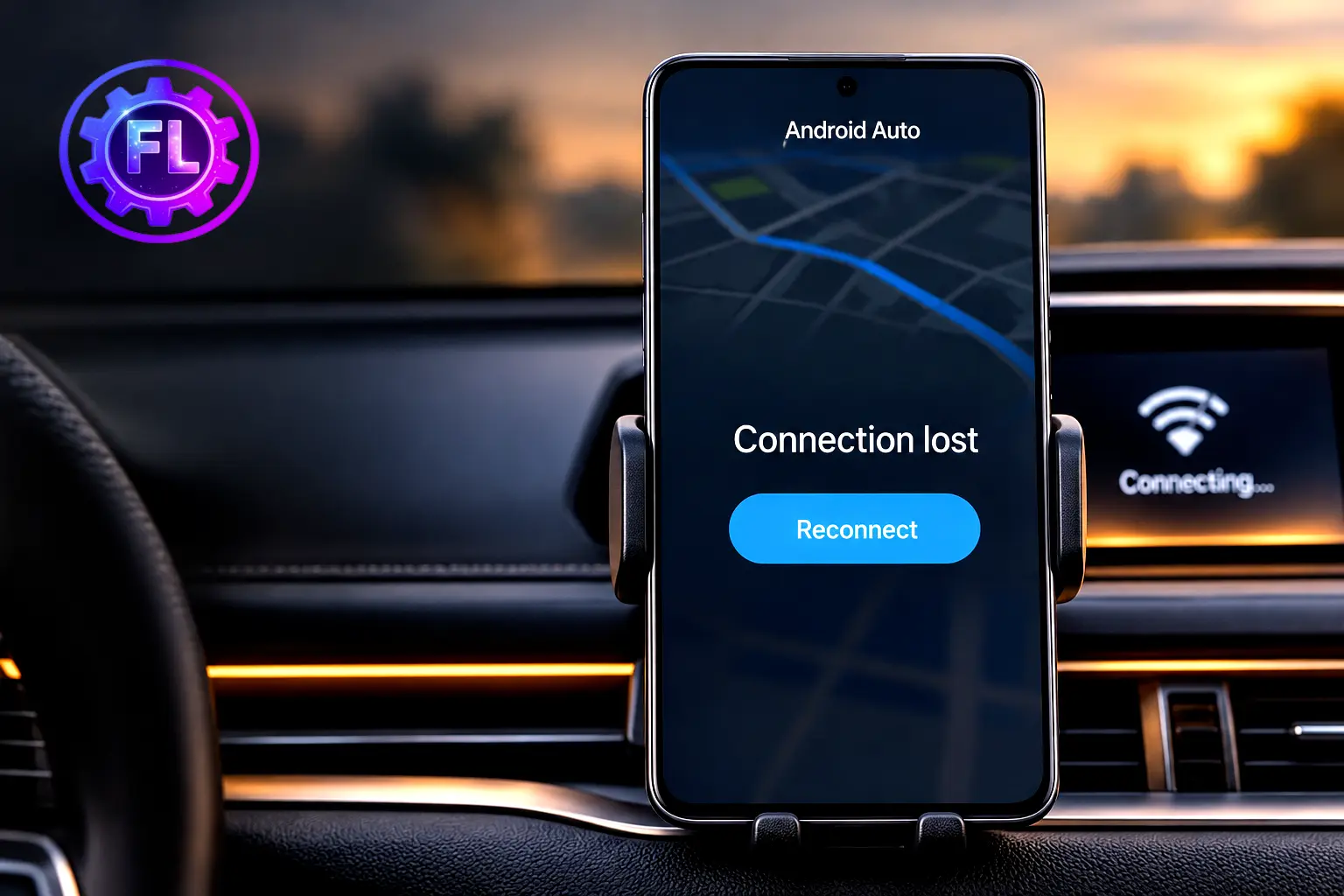
Imagine that you are sitting in your car to begin your journey. You turn on Bluetooth to connect your phone to the car screen, but the connection keeps failing. The phone does not connect, and the screen just shows “Connecting…” If wireless Android Auto has started acting like this, this guide will show you how to fix it, step by step.
Wireless Android Auto uses both Bluetooth and Wi-Fi. Bluetooth handles the initial pairing, while Wi-Fi carries the projection to your car screen. Google also recommends keeping Location Services turned on during setup. If either connection has a problem, the session may fail or keep dropping.
Some Samsung Galaxy users have reported problems after updating to One UI 9. Recent discussions on Google’s Android Auto forum also mention wireless connections dropping after updates.
These are user reports, and no single cause has been confirmed for everyone. This guide does not assume that one update is responsible. Instead, it starts with the easiest checks and moves on to deeper fixes.
Quick Fix
Do these in order, and test after each one. Park the car first.
- Restart your phone fully, not just the screen.
- Turn the car off, wait a minute, and start it again so the infotainment screen restarts too.
- Switch Bluetooth and Wi-Fi off, then on again.
- Make sure Location Services are on.
- Reconnect while the car is in park.
If one of these worked, you are done. If not, the sections below explain why it keeps failing.
Why Is Wireless Android Auto Not Working?
Wireless problems can have several different causes, including:
- A Bluetooth pairing that looks fine but never finishes the wireless setup.
- Wi-Fi that drops or gets interrupted during the drive.
- An old Android Auto, Google Play services, or phone software version.
- A saved car entry that has gone bad.
- A car screen or adapter that needs its own update.
Fix Wireless Android Auto Not Connecting
Check Wireless Compatibility
Wireless needs more than wired does. Google’s wireless requirements say you need an Android phone with an active data plan and 5 GHz Wi-Fi support, and the Help Center gives Android 11 as the version to look for. Google’s partner requirements page also lists a few older exceptions: Google Pixel and Samsung phones on Android 10, and the Galaxy S8, S8+ and Note 8 on Android 9. That does not mean every Android 9 or 10 phone supports wireless, and the main Help Center page does not mention these exceptions. Treat Android 11 as the safe baseline, and ask the phone maker if your phone is older. If you are not sure about 5 GHz support, ask the phone maker too.
Your car or stereo must also support wireless, and a Bluetooth-only car does not count. For the car, check the owner’s manual or ask the dealer. If your car supports only wired Android Auto, some aftermarket wireless adapters can add the wireless part. They do not add Android Auto to a car that lacks it, Google’s Help Center does not cover them, and not every adapter works with every phone or car, so check the adapter maker’s compatibility list.
What to expect: If your phone or car lacks wireless support, no setting will fix it. Use a cable, or look into a compatible adapter if your car supports wired Android Auto.
Check Bluetooth, Wi-Fi, and Location Settings
Bluetooth pairing alone does not finish the job. After pairing, the phone has to start Wi-Fi with the car. Google says in its setup guide to keep Bluetooth, Wi-Fi, and Location Services on while you set up.
Open Settings and confirm all three are on. Then look at the car’s own settings. Many cars have separate switches for Bluetooth, Wi-Fi, and Android Auto, and one switched-off option is enough to break wireless.
What to expect: After a correct pairing, Android Auto should start on the car screen within a few seconds.
Remove the Old Pairing and Start Again
A damaged saved pairing can be one reason a car that worked yesterday refuses today. Clear it from both sides:
- On your phone, open Settings, go to your Bluetooth list, tap the gear next to the car, and choose Forget (Samsung calls it Unpair).
- On the car screen, open the device list and delete your phone.
- Restart both.
- Pair again from the beginning, with the car in park.
What to expect: You will see the Android Auto setup prompts again, as if the car were new.
Check Android Auto’s Own Wireless Settings
Go to Settings, Connected devices, Connection preferences, then Android Auto. On Samsung phones, searching for “Android Auto” inside Settings is the quickest way to find it. Menu names vary a little between Pixel, Samsung Galaxy, and other brands.
If these options appear on your phone, check them:
- Start Android Auto automatically should be set to Always, and Start Android Auto while locked should be on.
- Previously connected cars should list your car.
If your car is missing or stuck, Google’s troubleshooting page gives a clean reset: unplug the phone, open Previously connected cars, tap the top-right menu, and choose Forget all cars. Then set the car up again.
What to expect: After a fresh setup, the car should appear in the list again as a new entry.
Fix Android Auto Keeps Disconnecting While Driving
Check Wi-Fi Interference and Battery Restrictions
Wireless Android Auto sends the screen over Wi-Fi, so anything that disturbs Wi-Fi can cause a drop. Two things are worth testing.
First, look for any setting that automatically switches between Wi-Fi and mobile data. The name differs on each phone. Turn it off for one drive and see if the drops stop. Turn it back on afterward if it made no difference.
Second, battery saving can put Android Auto to sleep in the background. On many phones, go to Settings, Apps, Android Auto, Battery, and choose Unrestricted. On Samsung, open Settings, Battery, Background usage limits, and remove Android Auto from Sleeping apps or Deep sleeping apps. Nobody has confirmed this as a cause for every phone, so treat it as an optional test. Battery settings vary by manufacturer and phone model, and the menu names above may differ on yours. If you see no improvement after a drive or two, you can switch the setting back to how it was.
What to expect: If this was the cause, the random drops should stop within a drive or two.
Update Android Auto and Google Play Services
Start with Google Play services, which connects apps to other Google services. Google’s Play services update steps are:
- Open Settings and tap your profile picture.
- Tap All services.
- Under Privacy & Security, tap System services, then Google Play services.
- Tap Update or Install.
Menu names and availability may vary by device. If you do not see these options, Google’s page lists other steps, but it advises against clearing Google Play services data unless you have tried everything else.
Android Auto is built into your phone, but it can still ask for an update. If your phone prompts you to update it, accept. Then check Settings for any waiting system update.
Do not assume an update is to blame just because the trouble started around the same time. It might be, but it might not.
What to expect: After updating, restart the phone before you test again.
Test Another Phone or Another Car
This is a quick way to learn whether the phone or the car is responsible. Connect your phone to a different compatible car, or connect another phone to your car.
- If your phone fails in every car, the problem is likely on the phone.
- If another phone also fails in your car, look at the car.
- If both work somewhere else, go back to the pairing and settings fixes above.
What to expect: One short test can save a lot of guessing.
Fix Android Auto Black Screen or Blank Display
Restart the Infotainment Display
A black screen with working audio can mean the car’s display software is stuck. Try the car’s own restart. Google lists restarting the infotainment system as a standard step on its troubleshooting page. Some makers use a special routine. GMC, for example, describes a longer power-down process in GMC’s Android Auto guide. Check your own manual for the right method.
Also see whether other screen functions, like radio or navigation, respond normally. If they do not, the problem is the screen, not Android Auto.
What to expect: After the restart, Android Auto should load a fresh screen.
Check Display and Resolution Settings
If you have ever changed Android Auto’s developer or video settings, set them back to default. A resolution your car does not handle well can leave the screen blank. Many people never need these settings, so the safest move is to leave them alone.
What to expect: With default settings, the screen should render normally.
Fix Android Auto Lag, Freezing, or Slow Response
Close Background Apps and Restart
If taps feel slow, your phone may simply be short on memory. Close heavy apps such as video, games, and big social apps, then restart the phone. Navigation, music, and wireless projection all run together, so a busy phone may feel it quickly.
What to expect: Menus and maps should respond faster after a restart.
Clear the Android Auto Cache
Go to Settings, Apps, Android Auto, Storage (or Storage and cache), then tap Clear cache. If you cannot find Android Auto in the list, search for it in Settings.
Cache holds temporary files, so clearing it is a lower-risk step. Clear storage is different, because it resets your Android Auto preferences and you will need to set the car up again. Try the cache first and keep storage as a later step.
What to expect: The first launch afterward may take a little longer, which is normal.
If Nothing Works: Reset the Wireless Connection
Reset Network Settings as a Last Resort
Only try this after everything above. The reset clears saved Wi-Fi networks and Bluetooth pairings, so keep your Wi-Fi passwords ready. Your photos and apps stay untouched.
- Samsung Galaxy: Settings, General management, Reset, then Reset Wi-Fi and Bluetooth settings.
- Google Pixel: Settings, System, Reset options, then Reset Bluetooth & Wi-Fi.
- Other phones: Look under System or General management for a similar reset option.
Afterward, pair your phone with the car again as if it were new.
What to expect: You will need to reconnect to your home Wi-Fi and pair the car once more.
Is This a Recent Android Auto Update Bug?
It is natural to wonder, and the honest answer is that it depends on your phone. Several things are worth separating.
User reports on Google’s help forum or Issue Tracker show that people are having a problem. They do not prove a bug in an update, and they are not an official acknowledgment. An acknowledgment means Google itself confirms the issue or a fix.
There is one recent example of the second kind. On Samsung phones running One UI 9, Google told Android Authority that a fix was rolled out. Google did not say which version carries it or whether every affected phone is covered. That applies to that specific case, not to every wireless problem.
If you do not own a Galaxy on One UI 9, treat the cause as unknown. Work through the fixes above and keep your apps updated.
When the Problem Is With Your Car, Not Your Phone
Sometimes the phone is fine and the car is the weak link. Signs include a phone that works in other cars, or a car that fails with several phones.
- Car software: Infotainment screens get their own updates. Check your maker’s website or dealer for one.
- Wireless support: Some cars only support wired Android Auto, even with Bluetooth.
- Aftermarket stereos: Google suggests checking the maker’s site for a firmware update on units from brands like Pioneer or Kenwood.
- Maker guidance: Brands such as GMC publish their own troubleshooting steps, including how to restart the system and check for vehicle software updates.
If you have tried everything, contact the manufacturer or a dealer and tell them what you already tested.
How to Report an Android Auto Connection Problem
A good report helps Google and your car maker find the pattern. Write down:
- Your phone model and Android version.
- The Android Auto version (in Android Auto settings).
- Your car’s make, model, year, and infotainment version.
- Whether wired Android Auto works.
- What happens, and when it started.
Send it through the feedback option in Android Auto’s settings, or post in the Android Auto Community. Samsung users can also send an error report through Samsung Members.
Frequently Asked Questions
Will “Forget all cars” delete my apps or Android Auto settings?
No. It only removes the list of cars your phone has connected to. Your apps stay as they are. You will go through the car setup once more.
Does wireless Android Auto use mobile data?
Android Auto needs an active data plan on the phone, and Google asks you to be in range of your mobile network. Apps such as navigation and streaming rely on that connection, while the Wi-Fi link to the car carries the screen itself.
Does Android Auto work on Android (Go edition) phones?
No. Google states that Android Auto is not available on Android (Go edition) devices.
Does Android Auto work in every country?
No. Google lists the countries where it is supported, and says most features will not work outside them. Check the official list before blaming your phone.
Can I use a cable while I wait for a fix?
Yes. If your car supports wired Android Auto, it is a good stopgap. Google suggests a cable under 3 feet (1 meter), no hubs or extensions, and ideally the one that came with your phone.
Could my wireless adapter be the problem?
It can be. A wireless adapter adds one more device between your phone and the car, and it is meant for cars that already support wired Android Auto. Compatibility varies by adapter, phone and car, so check the maker’s compatibility list and look for firmware updates. If your car also supports wireless on its own, test with the adapter removed.
Start small: restart both sides, check Bluetooth, Wi-Fi, and Location, then re-pair the car. For many readers, the first steps may be enough. If the drops continue, the phone-and-car swap test tells you whether to look at the phone, the wireless link, or the car.
Keep Android Auto and Google Play services updated, and use a cable if you need a dependable connection today. If you do find a fix, or a fix finds you, it may well arrive through an ordinary update.

- Pixel 10 and 11 Camera Showing a Black Screen? How to Fix - November 13, 2026
- Microsoft Outlook Not Loading? What EX1550543 Means for Phone Users - November 13, 2026
- iOS 27.2.1 Security Fixes and What to Do If Your iPhone Feels Off - November 12, 2026