
Published: September 09, 2026
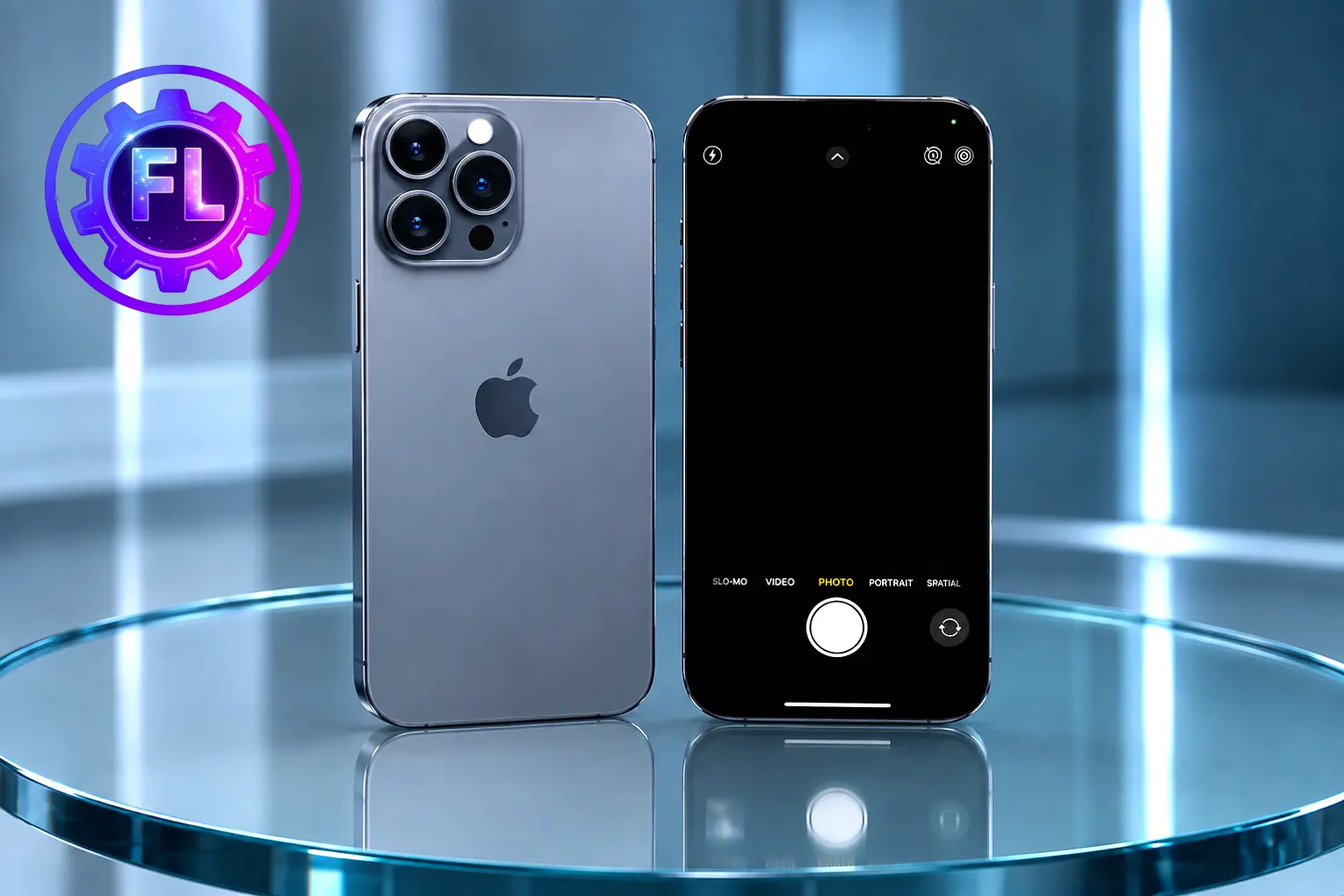
If the Camera on your iPhone 16 is not working properly, the screen is black, the Camera app is not opening, or it crashes when you tap the button. If the camera works, the images come out blurry. Before fixing these issues, we first need to make sure where the problem is coming from.
If the Camera Control button on the side is causing the problem, this is a different issue. You can fix it using our Camera Control button not working guide.
If it’s the Camera app or the lens itself acting up, here’s where to start.
Quick Fix
- Swipe up from the bottom of the screen, hold, then swipe up on the Camera app’s preview card to close it. Open the Camera app again.
- Tap the camera-switch icon once to switch to the front camera, then switch back to the rear camera.
- If your photos are blurry, clean the front and rear camera lenses with a microfiber cloth.
- Remove the case or lens protector.
- Restart your iPhone.
These 5 simple tips can help fix common camera problems. If the camera is still not working properly, try the fixes below.
Update iOS to Fix Camera Problems
Go to Settings, then General, then Software Update, and install any available iOS update. An iOS update can fix software problems that affect the Camera app.
Why the Camera App Stops Working
A few things can cause camera problems, such as a temporary software glitch, camera access being restricted, something covering the camera, or the iPhone getting too hot.
Fix iPhone “Cannot Take Photo” Storage Error
If you’re seeing a notification that your storage is full, your iPhone’s available storage has run out. Until you free up some storage, you won’t be able to take new photos. Delete junk files and other files you no longer need, and clear the cache.
Grant Camera Access If a Specific App Won’t Use It
If the camera works fine but does not work in social apps such as Instagram, WhatsApp, Snapchat, or TikTok, go to Settings, then Privacy & Security, then Camera, and turn that app’s toggle on. This is the same screen Apple’s support guide describes.
If the Camera app is hidden, also check Settings, then Screen Time, then Content & Privacy Restrictions, then Allowed Apps & Features, and make sure Camera is turned on there.
Black Screen or Frozen Preview
If the Camera preview is still black or frozen, check whether the front or rear camera is affected. If only one camera is affected while the other works normally, this can help narrow down the problem to that camera.
Blurry, Dark, or Distorted Photos
If there is dust, moisture, or fingerprints on the camera lens, clean it with a soft cloth so the camera can clearly capture what is in front of it.
If the iPhone moves between very different temperatures, moisture can form on the camera lens and make it look foggy. Let the iPhone return to room temperature and allow the moisture to clear. Do not use a hairdryer or direct heat to dry it faster.
iPhone Camera Overheating or Flash Not Working
When the iPhone shows a temperature warning or automatically disables the camera flash, it means the phone has become too hot. As a precaution, stop using the iPhone until it cools down.
iPhone Camera Hardware Problem
This guide covers fixes for software glitches and other external issues that can cause camera problems. However, the iPhone could also have a hardware problem. In that case, contact Apple Support or visit an Apple Authorized Service Provider instead of continuing to troubleshoot.
FAQ
Is my iPhone camera problem software or hardware?
If the camera problem affects both the front and rear cameras and continues after a restart and other software fixes, it could be a software issue. If only one camera consistently fails, especially after a drop or physical damage, the problem could be hardware-related.
Will erasing my iPhone fix a broken camera?
Erasing the iPhone removes all content and settings and returns it to factory settings. It can help rule out a software problem, but it won’t fix physical damage to the camera. Back up your iPhone before erasing it and try the simpler fixes first.
Why does my iPhone say “Cannot Take Photo” even though I still have some storage left?
Go to Settings, then General, then iPhone Storage to check how much space is available. Large videos, photos, apps, and other files can quickly use up storage. Free up some space and try taking a photo again.

- Galaxy S26 Ultra Wireless Charging Stuck at 10W/15W - September 17, 2026
- How to Fix Google Maps Showing Wrong Directions and Inaccurate Location - September 13, 2026
- iPhone 16 Camera Not Working? Fix Black Screen, Crashes & Blurry Photos - September 9, 2026
