
Published: August 29, 2026
If an app gets stuck while installing from a marketplace, there can be several reasons for it. Maybe a permission restriction is blocking the installation, or it could be that the region or country you are currently in does not make your Apple ID eligible. So, instead of trying random things, it is better to check this properly once. In many cases, the problem can be resolved by checking a few settings and eligibility requirements.
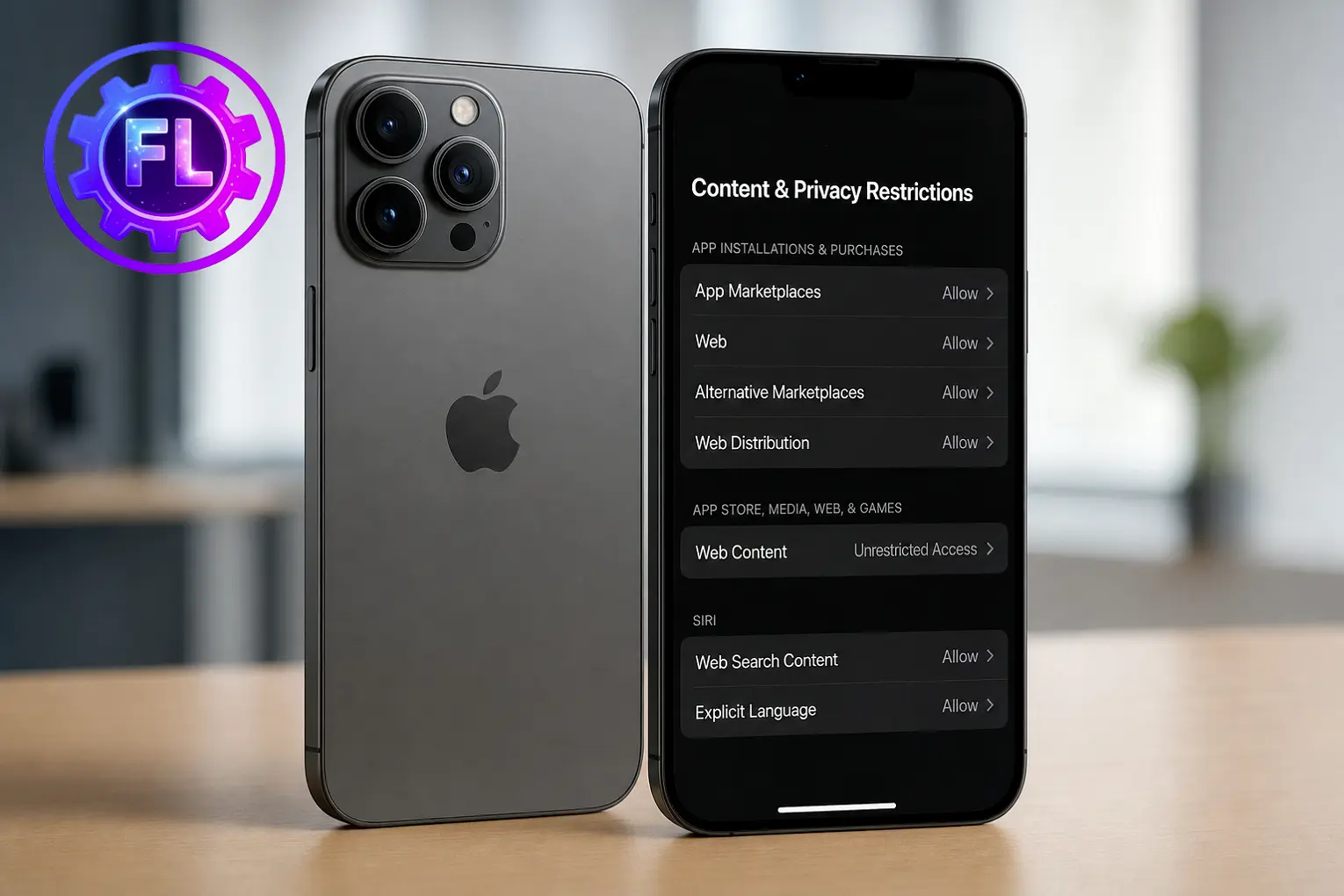
Go back to the marketplace or developer’s website and tap the install link again. The first time you install an app from a specific developer, iOS may ask you to allow the installation. Allow the required permissions so the installation can continue.
Set App Marketplaces to Allow.
Set Web to Allow when installing the app through a website.
Once you have allowed the required settings, try installing the app again. If it still does not install, check your Apple Account region and location eligibility below. We’ll go through the related requirements next.
Check Your Apple Account Region and Location
Check your Apple Account region, and also look at your current location to confirm that the country you are currently in supports alternative app marketplaces. If the country or region is not supported, you will not be able to complete the installation until the eligibility requirement is met.
iPhone
Go to Settings, [your name] > Media & Purchases, View Account, Country/Region and check the country or region listed for your Apple Account.
Note: You will not see an “Eligible” or “Not Eligible” message on this screen. To confirm whether you are eligible, compare the country listed on your Apple ID and your current location with Apple’s current supported-country list for alternative app marketplaces.
Common Reasons Apps May Not Install in the EU
1. Physical Location and Eligibility
For alternative app marketplaces, Apple requires you to be physically located in an eligible country or region. Your Apple Account region also needs to meet Apple’s requirements for alternative app distribution.
If you travel outside the eligible region, you may no longer be able to install new apps or alternative app marketplaces until you return to an eligible location and meet Apple’s requirements.
2. Apple ID Region Mismatch
Your Apple Account country or region also matters. It needs to be set to an eligible country or region where Apple supports alternative app distribution. If your account is registered to a country that does not support this feature, the installation may not be available even when you are currently in an eligible EU country.
3. Screen Time Blocking App Marketplaces
Screen Time restrictions can block alternative app marketplace installations when access to these features has been disabled. If App Marketplaces or Web is restricted, iOS may stop the installation even though the marketplace itself is working normally.
4. Developer Mode Is Not Required
You do not need Developer Mode to install apps from an alternative app marketplace. This setting is meant for app development and testing, so turning it on will not fix an installation blocked by your Apple Account, location, or marketplace eligibility.
System Requirements for EU Alternative App Marketplaces
Supported iOS Versions and iPhone Models
Alternative app marketplaces require a supported version of iOS or iPadOS. If the option to install an alternative marketplace or an app from a developer’s website is not appearing, go to Settings, General, Software Update and install the latest update available for your iPhone.
Eligible EU Countries and Regions
Alternative app marketplaces are available in supported countries and regions in the European Union. Your Apple Account country or region must be set to an eligible EU country, and you must be physically located in the EU when installing new apps through alternative app distribution. You can check the current requirements and supported regions on Apple’s official support page for alternative app distribution.
Change Your Apple ID Country or Region
Changing your Apple Account country or region is not a workaround for alternative app distribution eligibility. You should only change it if you genuinely need to move your account to another country and meet Apple’s requirements. Go to Settings, name, Media & Purchases, View Account, Country/Region, then tap Change Country or Region.
Select a supported EU country, review the Terms & Conditions, and tap Agree. Enter a valid payment method and billing address for the new region, then tap Next to complete the update.
Why a VPN Won’t Fix the Location Check
A VPN may change your IP address, but Apple’s eligibility requirements are not based on your IP address alone. Your Apple Account region and physical location requirements still apply. This means that using a VPN to appear as if you are in an eligible EU country is unlikely to bypass the location requirements.
Check Other Restrictions
App Age Rating Restrictions
Sometimes, an app may be unavailable because of the age restrictions set on your iPhone. Check your Screen Time and content restrictions to make sure the app’s age rating is allowed.
Workplace or School Restrictions
If your iPhone is managed by your workplace or school, some settings may be controlled by an administrator. A management profile can restrict alternative app distribution, so changing your personal settings may not remove the restriction.
Troubleshooting Specific Sideloading Errors
“App Marketplace Not Available in Your Region”
This message can appear when your Apple Account region or physical location does not meet the requirements for alternative app distribution. Check that you meet both eligibility requirements mentioned earlier. Using a VPN is unlikely to bypass this restriction.
Network Errors During Installation
If the installation reaches the verification stage but cannot continue because of a network error, the problem may be related to your iPhone’s cellular connection. If your mobile data is not working properly, these steps for fixing iPhone cellular data problems may help resolve the issue.
iPhone Heating or Battery Drain
The installation process may sometimes cause unusual background activity, which can temporarily make your iPhone use more power or become warm. Continued battery drain after an installation attempt could be related to other issues, and these iOS battery drain fixes can help you identify the possible causes.
What Happens to EU Sideloaded Apps When You Travel Abroad?
Apps you have already installed can continue to work after you leave the EU. However, updates may only be available for a limited time while you are outside an eligible country.
To install a new app marketplace or download new apps this way, you will generally need to be back in an eligible region and meet Apple’s requirements.
Frequently Asked Questions
Do sideloaded apps update automatically on iOS in the EU?
Yes. These apps can update automatically, and updates may continue for up to 90 days after you leave the EU. After that, you may need to return to an eligible EU country before updates become available again.
Why is the “Allow Marketplace Installation” option missing in Settings?
This option may be missing because of a Screen Time restriction, a management profile from your workplace or school, or because your Apple Account region is not eligible.

- Galaxy S26 Ultra Wireless Charging Stuck at 10W/15W - September 17, 2026
- How to Fix Google Maps Showing Wrong Directions and Inaccurate Location - September 13, 2026
- iPhone 16 Camera Not Working? Fix Black Screen, Crashes & Blurry Photos - September 9, 2026
