
Published: August 26, 2026
A WhatsApp account can be banned when Meta’s system detects spam, bulk messaging, or the use of unofficial WhatsApp apps. Sometimes, legitimate users may also be banned by mistake, especially after joining many groups or sending the same message to multiple people.
Below, I’ve included 5 practical things I found useful while testing the appeal process myself.
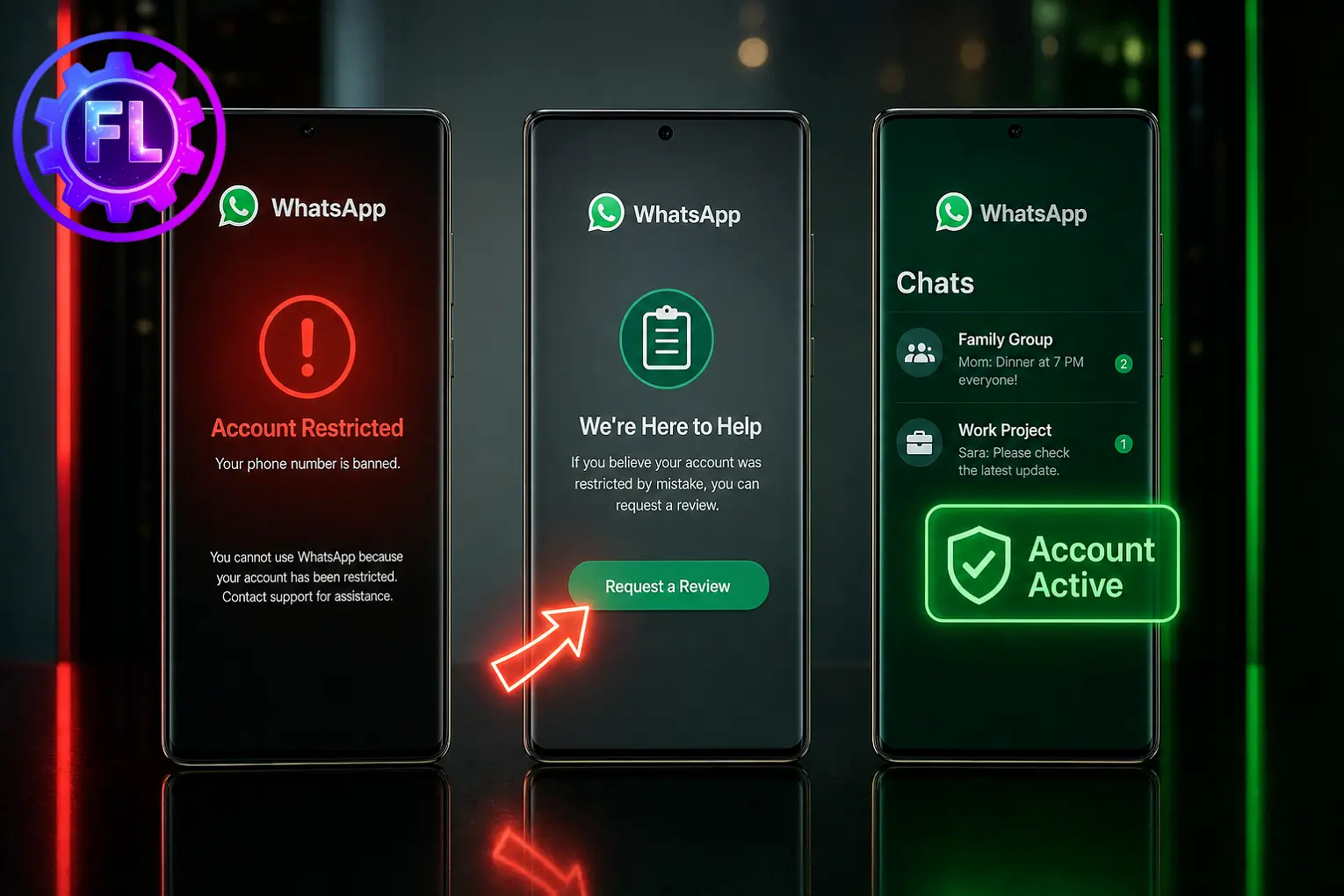
If you see Request a Review on your phone screen, tap it to send your appeal. You’ll then see a Describe the issue box where you can explain what happened. I’ve written an example below that you can use as it is or adjust to your situation.
Once your account is active, keeping it secure is always a good idea. In WhatsApp Security Features in 2026, we explain how the new security features can help protect your account and what benefits they
Note: If your WhatsApp Web QR code is not scanning, that’s a separate login issue. WhatsApp bans and QR code problems have different fixes, and we’ve covered the QR code issue separately.
Quick Check: Temporary Ban vs Permanent Ban
Temporary Ban: This is a time-limited restriction that ends automatically when the countdown is over. A timer shows how long the restriction will last. Wait until the ban expires and avoid repeating the activity that caused it.
Permanent Ban: If you see “Your phone number is banned from using WhatsApp,” you can appeal the ban to ask WhatsApp to review your account.
Why WhatsApp Bans Accounts in 2026
WhatsApp uses automated systems to detect activity that may violate its rules. Common reasons include:
- Spam behavior: Sharing unwanted links or promotional content.
- Unofficial apps: Using modified versions such as GB WhatsApp, FM WhatsApp, or WhatsApp Plus.
- Group spam: Joining or creating too many groups in a short time.
- Reports: from other users can also lead to restrictions.
- Business messaging: Sending messages to people who did not opt in to receive them.
WhatsApp does not explain on the ban screen exactly why your account was restricted. That’s why submitting an appeal is important.
Before You Submit an Appeal
If you’re using a modded or unofficial WhatsApp app, uninstall it first. If you used GB WhatsApp, remove it and install the official WhatsApp app from the Google Play Store on Android or the App Store on iPhone before submitting your appeal.
How to Submit an Appeal From the App
Send the request from the same WhatsApp account and phone number that was banned.
- Open WhatsApp. You’ll see the ban message.
- Tap Request a Review.
- Follow the instructions shown on the screen to confirm your phone number, if WhatsApp asks you to do so.
- Explain your issue briefly in the Describe the issue box.
- Tap Submit and wait for WhatsApp to review your request.
Appeal message for Personal Accounts:
Hello WhatsApp Team, my number was banned, and I believe this was a mistake. I use WhatsApp to stay in touch with family and friends. I do not use unofficial apps or send spam. Please review my account. Thank you.
Appeal message for Business Accounts:
Hello WhatsApp Team, our WhatsApp Business number for [Shop Name] was restricted. We use WhatsApp to communicate with our customers. Please review our account. Thank you.
Keep your appeal short and explain the situation clearly. Avoid blaming WhatsApp or sending repeated requests.
For more details, you can also check WhatsApp’s official About account bans help page.
How Long Does WhatsApp Take to Respond
WhatsApp officially says reviews can take several days.
Check your app and email after submitting your appeal. WhatsApp may send an update when the review is complete.
Important: Don’t send repeated appeals while your first request is still being reviewed. It’s better to wait for a response before submitting another request.
If you get “We reviewed and upheld the ban,” you can follow WhatsApp’s instructions or contact WhatsApp support for further help.
Source: WhatsApp Help Center
Mistakes That Can Delay Your Recovery
- Using a different number to contact support
Try to submit your appeal from the banned number and account whenever the option is available. - Giving false information
Keep your appeal honest and include details that are true for your account. - Sending repeated appeals
Avoid sending multiple appeals in a short time. Submit your request and wait for WhatsApp to review it.
What If “Request a Review” Button Is Missing
If you don’t see the Request a Review button, go to WhatsApp > Settings > Help > Contact Us and follow the available options for your account issue.
Explain that your WhatsApp account is banned and include your phone number with the country code.
Watch Out for Paid Unban Scams
Be careful with people on YouTube, Telegram, or other platforms who claim they can unban your WhatsApp account for a fee. They may ask for your 6-digit verification code or other account details.
Never share your WhatsApp verification code with anyone. Avoid anyone who asks for money or sensitive account information in exchange for removing a ban. Use WhatsApp’s official review and support options instead.
Additional Tips for Your Appeal
- Don’t keep opening WhatsApp repeatedly
After submitting your appeal, there’s no need to keep checking the app every few minutes. Give WhatsApp time to review your request. - Use a stable internet connection
Make sure you have a reliable internet connection when submitting your appeal so the request can be sent properly. - Turn off your VPN
If you’re using a VPN, turn it off before submitting your appeal and use your normal connection. - Check your email spam folder
If you’re waiting for a response, check your spam or junk folder as well.
FAQs
Can a permanently banned number be unbanned?
A permanently banned number can be restored if WhatsApp reviews the account and removes the ban.
Will I lose my chats and media after getting unbanned?
No. If your account is restored after the appeal, your chats and media will remain as they were. Nothing will be deleted.

- Galaxy S26 Ultra Wireless Charging Stuck at 10W/15W - September 17, 2026
- How to Fix Google Maps Showing Wrong Directions and Inaccurate Location - September 13, 2026
- iPhone 16 Camera Not Working? Fix Black Screen, Crashes & Blurry Photos - September 9, 2026
