
Published: October 22, 2026
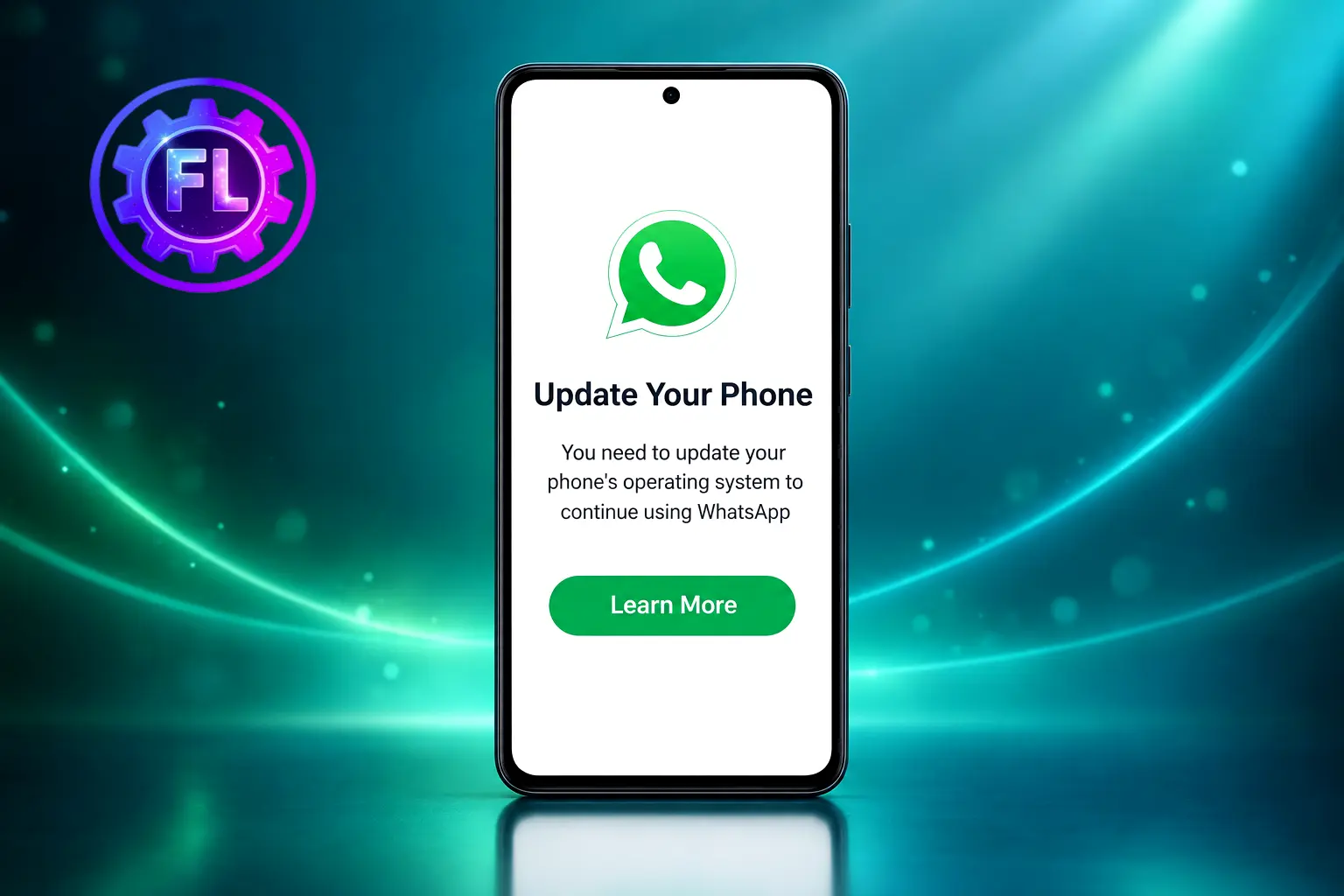
You open WhatsApp, and instead of your chats you see a screen telling you to update your phone first. Reports say there is no way to skip it. The message is about the Android or iOS version your phone is running, not about the WhatsApp app itself.
This guide explains why the screen appears, how to check your version, and what to do if your phone has no update left to install.
Quick Fix
If you want the short version, do this first:
- Open your phone’s Settings and check your Android or iOS version.
- Install any system update you see. On Android, look under Settings > System > Software updates. On iPhone, go to Settings > General > Software Update.
- Restart the phone, open WhatsApp, and log in again.
- If no update is offered, jump to the section on phones that cannot update.
What the Screen Actually Means
According to reports from GSMArena and other tech sites, WhatsApp has started blocking logins on phones with outdated system software. You see a screen that asks you to update your phone’s operating system first, and it also shows you where to check your current version. It cannot be skipped, so you cannot log in until the phone is updated.
The check happens on WhatsApp’s servers, so you do not need a new version of the app to trigger it. You can have the newest WhatsApp installed and still see the screen. The change is reaching selected accounts first, on both Android and iPhone, and WhatsApp has not published which versions set it off. People who do not see it yet may get it later if their system version is below WhatsApp’s minimum, according to WABetaInfo.
Why WhatsApp Cares About Your Phone’s Software
WhatsApp’s end-to-end encryption protects your messages, but reports suggest the concern is the phone itself. Outdated system versions can have known security weaknesses that attackers look for. When Meta raised its minimum system versions, it said older devices may lack the latest security updates or the functions the app needs.
Is This a Ban?
This screen is about your phone’s software, not your account. If you ever get an account restriction message instead, see the account appeal guide.
Minimum Versions to Know
Apart from the login screen, WhatsApp has announced minimum system versions it supports. These are the figures reported by several outlets, which cite the WhatsApp Help Center (last checked October 2026):
| Phone | Minimum version | Date |
|---|---|---|
| Android | Android 6.0 | From 8 September 2026 |
| iPhone | iOS 15.1 | Current |
| iPhone | iOS 15.5 | From 30 November 2026 |
Android 5.0 and 5.1 are no longer supported. On iPhone, every model that runs iOS 15.1 can also run iOS 15.5, so for most people the fix is just installing the latest update. Apple released iOS 15.8.8 on 11 May 2026 for the iPhone 6s (all models), iPhone 7 (all models), and iPhone SE (1st generation).
These are support limits. It is not confirmed that the login screen uses exactly the same numbers, so treat them as a guide, not a guarantee.
How to Check Your Version and Update
On Android
- Open Settings and tap About phone.
- Look for Android version. If it says 5.1 or lower, skip ahead to the section on phones that cannot update.
- Go back to Settings and open System > Software updates. The name changes from brand to brand.
- Connect to Wi-Fi and charge the phone to at least 75%, then download and install the update.
On iPhone
- Open Settings > General > About and check iOS Version.
- Go to Settings > General > Software Update.
- Tap Download and Install if an update is listed.
After the Update, Log In Again
Restart the phone, open WhatsApp, enter your number, and complete the verification. If the screen still appears, check for another update, because your phone may have more than one waiting.
If Your Phone Cannot Update Any Further
Sometimes the Software Update page says nothing is available, often because the maker no longer supports that model. WhatsApp has not said what happens to phones in this position. For a phone old enough, a newer phone may be the only real way back in.
Here is how to protect your chats when you switch:
- If you can still open WhatsApp, go to Settings > Chats > Chat backup and run a backup. Android backs up to Google Drive and iPhone to iCloud.
- If the app already blocks you, you may not be able to start a new backup from it. An earlier backup, if you had one turned on, is what you will restore later.
- Leave the old phone as it is and do not uninstall WhatsApp from it yet.
- On the new phone, install WhatsApp, log in with the same number, and choose to restore when asked.
Check that your chats appeared on the new phone before you wipe or sell the old one.
What Not to Do
- Do not install modified WhatsApp versions or “fix” apps from unknown websites. They are a common way to pick up malware, and the problem here is your phone’s system, not the app file.
- Do not factory reset the phone before you know a backup exists.
- Do not keep uninstalling and reinstalling WhatsApp. It will not change your system version, and it can remove chats that were only stored on the phone.
WhatsApp lists its supported systems in the WhatsApp Help Center. Check it before you buy a replacement phone, because the requirements can change.
Frequently Asked Questions
Will my iPhone data stay safe after updating iOS?
According to Apple, your data and settings stay the same after you update iOS.
What if my Android update will not download or says there is not enough space?
Google says a stalled update download is retried automatically over the next few days, and the phone sends a notification. If you see a “not enough space” message, free up storage and try again.
How do I find out whether my Android phone will get more updates?
Update schedules differ by device, manufacturer, and carrier. For Pixel phones, check Google’s update schedule pages. For other brands, ask the manufacturer or your carrier.

- Pixel 10 and 11 Camera Showing a Black Screen? How to Fix - November 13, 2026
- Microsoft Outlook Not Loading? What EX1550543 Means for Phone Users - November 13, 2026
- iOS 27.2.1 Security Fixes and What to Do If Your iPhone Feels Off - November 12, 2026