
Published: October 27, 2026
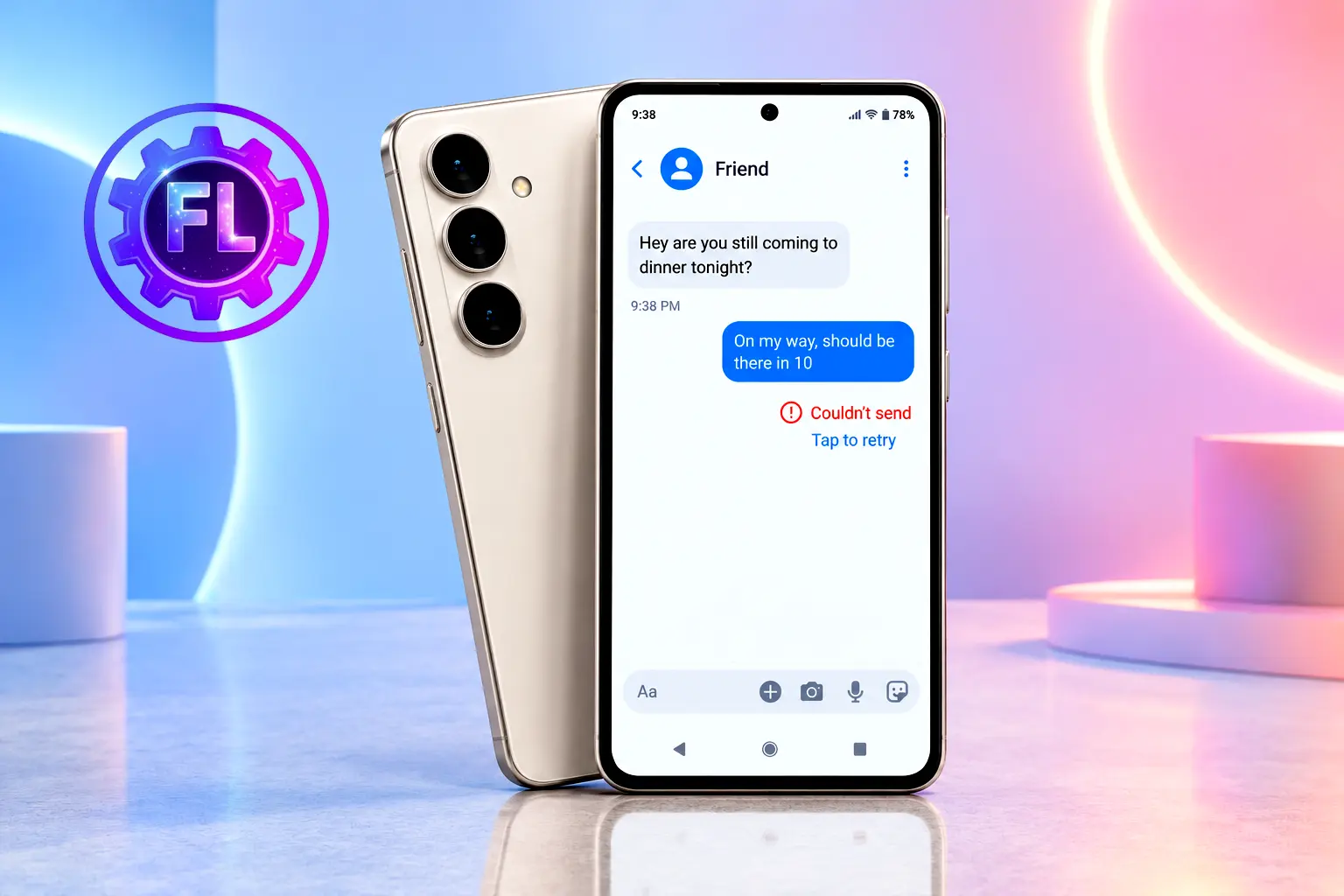
Sometimes when we send a message to someone on Messenger, it just won’t go through. The “Couldn’t send” notice appears with a Retry button underneath, and tapping Retry changes nothing. In other cases, a message sent to you never shows up at all.
This can happen for several reasons. A weak connection, a stuck app, a restricted chat, or a message sitting in your Message Requests folder could be the cause.
Start with one question: does the problem happen in just one chat, or in all of them? That simple check can save you a lot of guesswork. Then go through the fixes below in order, testing Messenger after each one to see what solves the problem.
Quick Fix
- Send a plain text message. If text goes through but photos, videos or voice clips fail, the connection or the attachment is a more likely cause than your account.
- Switch networks. Move from Wi-Fi to mobile data, or the other way round. If Messenger works on one, the other network is the weak spot.
- Close and reopen Messenger. This clears small temporary glitches.
- Restart your phone. Meta lists closing the app and restarting your device as a first troubleshooting step.
- Compare chats. If only one chat fails, look at that person or conversation. If every chat fails, look at the app, your connection or your account.
Is Messenger Down, or Is It Only You?
If every chat fails and the quick fixes did not help, Messenger itself may be having an outage. Our guide on how to check if Facebook is down shows you where to look. Outage trackers depend on user reports, and no single tracker or status page is guaranteed to confirm every Messenger problem, so treat them as clues, not proof.
If many people report problems at the same time, a wider outage is likely, and waiting is the right move. If you see no such reports, continue with the fixes below.
Why Messenger Messages Fail to Send or Arrive
Meta’s help page says you may be unable to send messages if you sent a lot of messages recently, or if your messages went against its Community Standards. Its troubleshooting tips also start with restarting the app and your device and updating Messenger. Other common causes:
- A weak or unstable connection. The easiest one to check.
- A stuck or outdated app. A temporary glitch or an old version can stop messages from leaving your phone.
- A temporary messaging restriction. Covered in step 6.
- The other person’s account. They may have deactivated or deleted it, or one of you may have blocked the other.
- A message sitting in Message Requests or filtered as spam. Covered in step 8.
- Late notifications. The message arrived, but your phone did not alert you.
- Encrypted chat history not restored. On a new phone, older messages can look missing until you restore them.
It also helps to tell a failed message from one that was sent but not yet seen. If Messenger shows a sending error or a retry option, the message usually did not go through. If it was sent without an error, the other person may simply not have opened it yet. Delivery icons change between app versions, so go by whether you see a real error and whether it keeps happening, not by one small icon.
How to Fix Messenger Messages Not Sending
Work through these in order and test after each one, so you know what helped.
1. Test Your Internet Connection
Open a website or another app on the same connection. If those are slow or fail too, your connection is the problem, not Messenger. Switch between Wi-Fi and mobile data, move closer to the router, and turn off your VPN for a minute if you use one. Data Saver (Android) and Low Data Mode (iPhone) can limit how apps use data, so switch them off while you test. Contact your internet provider only if other apps struggle too.
2. Restart Messenger and Your Phone
Close Messenger completely, not just minimize it. On Android, swipe it away from the recent apps screen. On iPhone, swipe up from the bottom edge, pause, then flick the Messenger card upward. If your iPhone has a Home button, double-press it instead. Then restart the phone, which clears glitches that closing one app can miss.
3. Update Messenger
Open the Google Play Store (Android) or the App Store (iPhone), search for Messenger, and tap Update if it is available. Meta’s troubleshooting tips include updating to the latest version. If there is no update, move on.
4. Clear Messenger Cache on Android and Check Storage
Cache is temporary data the app keeps so it can load faster. On Android, go to Settings > Apps > Messenger > Storage (some phones call it Storage and cache) and tap Clear cache. Menu names vary by phone brand and Android version.
Be careful with the button next to it. Clear data or Clear storage resets the app and can sign you out, so use it only if you are ready to log in again.
iPhone has no clear cache button, and Offload App is not the same thing. Also make sure your phone has enough free storage, which Meta’s tips mention too. If you use encrypted chats, read step 10 before you delete or reinstall Messenger.
5. Test Messenger on the Web or Another Phone
Log in to Facebook on a computer, open facebook.com/messages, and send the same message. Meta says messenger.com stopped being available for messaging from April 2026 and sends people to facebook.com/messages instead. No computer? Log in to the same account on another phone.
- Works there but not on your phone: the app or phone is the more likely cause, so steps 3 and 4 matter most.
- Fails there too: look at your account, the recipient, an outage or your network, and try a different network as well.
A working web version does not prove your account is fine. It only helps you narrow things down.
6. Check for Messaging Restrictions
Meta says you may be unable to send messages if you sent a lot of them recently, and that messages going against its Community Standards can also lead to a block. Its Messenger help page treats this as a temporary block, so waiting is part of the fix, but nobody can honestly promise how long it will last.
Look for a warning from Meta in Messenger or in your notifications. If Messenger warns you about sending too many messages or sending them too fast, slow down.
One failed message does not prove your account is restricted. The same symptom can come from your connection, the app or the other person’s account. A restriction is more likely when you see a clear notice, or when sending fails everywhere while other apps work normally.
7. Check the Recipient and the Conversation
If you can message some people but not one person, the problem is probably tied to that person or chat. Check that they have not deactivated or deleted their account, that neither of you has blocked the other, and, in a group chat, that you are still a member.
Do not decide you have been blocked just because a profile is hard to find. A deactivated account, a deleted account, a block and a search problem can all look alike from your side. If it matters, reach the person another way and ask.
8. Check Message Requests and Filtered Messages
If the problem is messages you expected but never got, look beyond the main chat list. Meta says messages from your Facebook friends, people on Marketplace and people on Facebook Dating go straight to your Chats list. Messages from other people can arrive in your Message requests folder instead. In the Messenger app, open the menu and look for Message requests. On facebook.com/messages, check the options menu next to Chats.
Meta also says messages that look like spam may be filtered, even from people you allowed to message you. Spam filtering does not affect messages from your Facebook friends. If one message from a non-friend, including a Marketplace contact, is missing, the simplest fix is to ask the person to send it again.
9. Check Notifications and Battery Settings if Messages Arrive Late
This step is for messages that show up eventually but give no alert. It does not fix messages that fail to send.
- Android: Settings > Apps > Messenger > Notifications, and make sure they are allowed. Then check the app’s battery setting (Settings > Apps > Messenger > Battery) and avoid a restricted mode. Labels vary by brand.
- iPhone: Settings > Notifications > Messenger > Allow Notifications. Then check Settings > General > Background App Refresh, and make sure no Focus mode is silencing the app.
10. Old Chats Missing on a New Phone? Check Encrypted Chat Restore
This step is only for old chats that are missing after you moved to a new device, not for new messages that fail to send.
Meta says that when you log in on a new device, you need to restore your end-to-end encrypted chats using the security method you chose. Depending on your setup, that can be a PIN, an Apple account (iPhone only), a Google account (Android only), a 40-character code, or a one-time code sent to a mobile device where you recently used Messenger. Meta’s guide to restoring encrypted chats lists the current options. This feature is being rolled out gradually, so it may not be available on every account yet.
Warning: Meta says Messenger cannot reset your PIN or restore your backup for you. If you forgot your PIN, try the other available restore options first. Before resetting your PIN or changing Secure Storage settings, follow Meta’s current official instructions carefully. Deleting Secure Storage can permanently delete your saved end-to-end encrypted chat history. Do not delete it unless you understand and accept the risk of losing those chats.
What to Do If Messenger Still Does Not Work
If nothing helped and there is no sign of an outage, report the problem through Meta’s Help Center. Menu paths inside the app change, so searching the Help Center for the report-a-problem option is safer than following a fixed path. Include these details so your report is useful:
- Your phone model and operating system version
- The Messenger app version
- The exact error message, if there is one
- Whether one chat or all chats are affected
- Whether it fails on Wi-Fi, on mobile data and on the web version
Frequently Asked Questions
Can a temporary block also stop friend requests?
Yes, according to Meta. If you cannot send messages, you may also be temporarily blocked from sending friend requests. When the block ends, Meta advises sending messages and friend requests only to people you know.
Is it safe to give my password to someone who offers to fix this?
No. Fixing a sending problem never needs your password. Anyone who asks for it, even someone who says they work for Meta, may be trying to take over your account. Use only Meta’s own Help Center.

- Pixel 10 and 11 Camera Showing a Black Screen? How to Fix - November 13, 2026
- Microsoft Outlook Not Loading? What EX1550543 Means for Phone Users - November 13, 2026
- iOS 27.2.1 Security Fixes and What to Do If Your iPhone Feels Off - November 12, 2026