
Published: November 23, 2026
If your Viber chats are missing on a new phone, the cause is usually one of three things: a different phone number, a different Google Drive or iCloud account, or a switch between Android and iPhone. Viber history follows the number and the cloud account used for the backup, and it cannot move between platforms. Check your old phone and your backup before you uninstall anything.
Quick Fix
Keep the old phone untouched. Activate Viber on the new phone with the same number used on your old phone. If you completed Viber’s official New phone number and new device process, use your new number instead. Sign in to the same Google or Apple account used for the backup. Then open More > Settings > Account > Viber Backup and choose Restore.
Why Viber Chat Backup Is Not Restoring
Most failed restores come down to a mismatch between the backup and the new setup. These are the common ones:
- Switching between Android and iPhone. Android backups go to Google Drive and iPhone backups go to iCloud. They do not work across platforms.
- Using a different phone number. A backup is tied to the number of the original account. If you sign up with a new number on the new phone, Viber will not find that backup. Changing your number needs a few extra steps, covered below.
- Signing in to the wrong account. If you have more than one Google or Apple account, Viber may be looking in an account that has no backup.
- No backup was ever made. If the old phone never backed up, there is nothing in the cloud to restore.
- The backup is old. Viber can only bring back chats as they were on the backup date.
- The backup did not finish. Make sure the backup process finished successfully before switching phones.
- Photos and videos were not included. Media is restored only if it was selected when the backup was created.
- Files you never opened also expire after 14 days, as covered in our guide on Viber media not downloading.
Check These Things Before Restoring Viber Chats
A few minutes of checking can save you from overwriting something you still need.
- Confirm the phone number used by your original Viber account.
- Identify the Google Drive or iCloud account that holds the backup.
- Check that a backup exists and note its date.
- Keep the old phone available if you still have it.
- Make sure you have a steady internet connection and enough free storage on the new phone.
- Update Viber on both phones before you try any transfer.
Warning: Do not uninstall Viber from the old phone or erase its data until you have confirmed that the backup or transfer works. The old phone may be your only complete copy.
If You Are Also Changing Your Phone Number
Do this on the old phone, before you set up the new one. Viber has an official option for changing your number and your phone together.
- Open Viber on the old phone and go to More > Settings > Account > Change phone number.
- Choose New phone number and new device, then tap Continue.
- Choose whether to include photos and videos.
- Tap Back up now and wait for it to finish. This may take a few minutes.
- Tap Back (Android) or Done (iPhone), select your country, enter the new number without a leading 0, and tap Continue.
- Viber sends an activation code to the new number by SMS or call. Make sure the new SIM is active and can receive it, then enter the code to finish the number change.
- Only after that, install Viber on the new phone, activate it with your new number, and restore your content.
Your contacts are told about the new number. Purchases are restored as a separate step (see the last FAQ). The same-platform rule still applies.
How to Restore Viber Chats on a New Android Phone
Check Your Viber Backup in Google Drive
If you can still use the old phone, check there first. Open Viber and go to More > Settings > Account > Viber Backup. This screen shows which Google account is connected. In most versions it also shows when the last backup was made. On Huawei phones without Google services, connect Viber to Huawei Drive instead.
If the date is older than you expected, create a fresh backup now by tapping the backup button on that same screen. Use Wi-Fi so it finishes without interruption. Viber explains the full process in its official backup guide.
Confirm the Correct Phone Number and Google Account
The Google account must match the one used for the original backup. Normally, you must also use the same phone number, unless you changed it through Viber’s official process described above.
If your new phone has several Google accounts, do not guess. Look at the connected account on the old phone and use that exact one on the new phone. If the old phone is gone, think about which account you used to set it up and try that one first.
Restore Your Viber Chat History
- Install Viber on the new phone and open it.
- Activate it with your original phone number (or your new number, if you used the change-number process above).
- Enter the activation code. If you use 2-step verification, enter your PIN when asked.
- When Viber offers to restore your content, tap Restore Now.
If you skipped that prompt, you do not need to reinstall. Go to More > Settings > Account > Viber Backup > Restore > Restore Now.
One thing matters before you tap it. Restoring returns your chat list to how it was on the backup date. Newer messages that are not in the backup may not appear afterward. Save anything important from your current chats first, such as an address or a code.
Reinstalling Viber is a last resort. Consider it only after you have confirmed that a valid backup exists and that nothing important will be lost.
How to Restore Viber Chats on a New iPhone
Enable Viber in iCloud Settings
Viber needs permission to use iCloud on the iPhone. Open Settings, tap your name at the top, then tap iCloud and make sure Viber is switched on. On some iOS versions, Viber sits under Saved to iCloud or Show All. Menu names can vary slightly.
Verify Your iCloud Account and Backup
The new iPhone must be signed in to the same Apple Account that held the backup. Check this at the top of Settings, where your name and account appear.
To see whether a Viber backup exists, use the old iPhone if you have it. Open More > Settings > Account > Viber Backup in Viber. That is where Viber itself shows backup information.
Restore the Backup in Viber
- Install Viber on the new iPhone.
- Activate it with the same phone number as the old account (or your new number, if you used the change-number process above).
- Tap Restore when Viber offers to bring back your content, or go to More > Settings > Account > Viber Backup and restore from there.
- Stay on a stable internet connection until it finishes.
Large histories take time. Keep the app open and avoid switching networks while it works.
Transfer Viber Chats Directly Using Wi-Fi
If you still have the old phone, you may not need a cloud backup at all. Viber can send your history directly from one phone to the other. This works only between two phones on the same system: Android to Android, or iPhone to iPhone.
You will need:
- Viber version 25.0 or later on both phones.
- Wi-Fi and Bluetooth turned on for both.
- Both phones close to each other.
Here is the process:
- Install Viber on the new phone and activate it with your existing number.
- When Viber offers to transfer your history, tap Get Started on both phones.
- Use the new phone to scan the QR code shown on the old phone.
- Keep both phones nearby and connected until the transfer is complete.
Viber covers this in its four-step new phone setup. Remember that this method cannot move chats from Android to iPhone or the other way around.
Can You Restore Viber Chats from Android to iPhone?
No. Viber does not officially support moving chat history between Android and iPhone.
Android backups live in Google Drive and iPhone backups live in iCloud. Viber can read only the type that belongs to the platform it is running on. A backup made on Android is invisible to Viber on an iPhone, and the reverse is also true.
Reinstalling Viber will not fix this. The app is not failing. It simply has no compatible backup to read. Your account and number will still work on the new phone, but the old conversations will not follow.
If you plan to switch platforms, decide what you need to keep before the old phone goes away. Save important photos, documents and key details from chats manually.
Troubleshoot Common Viber Backup Problems
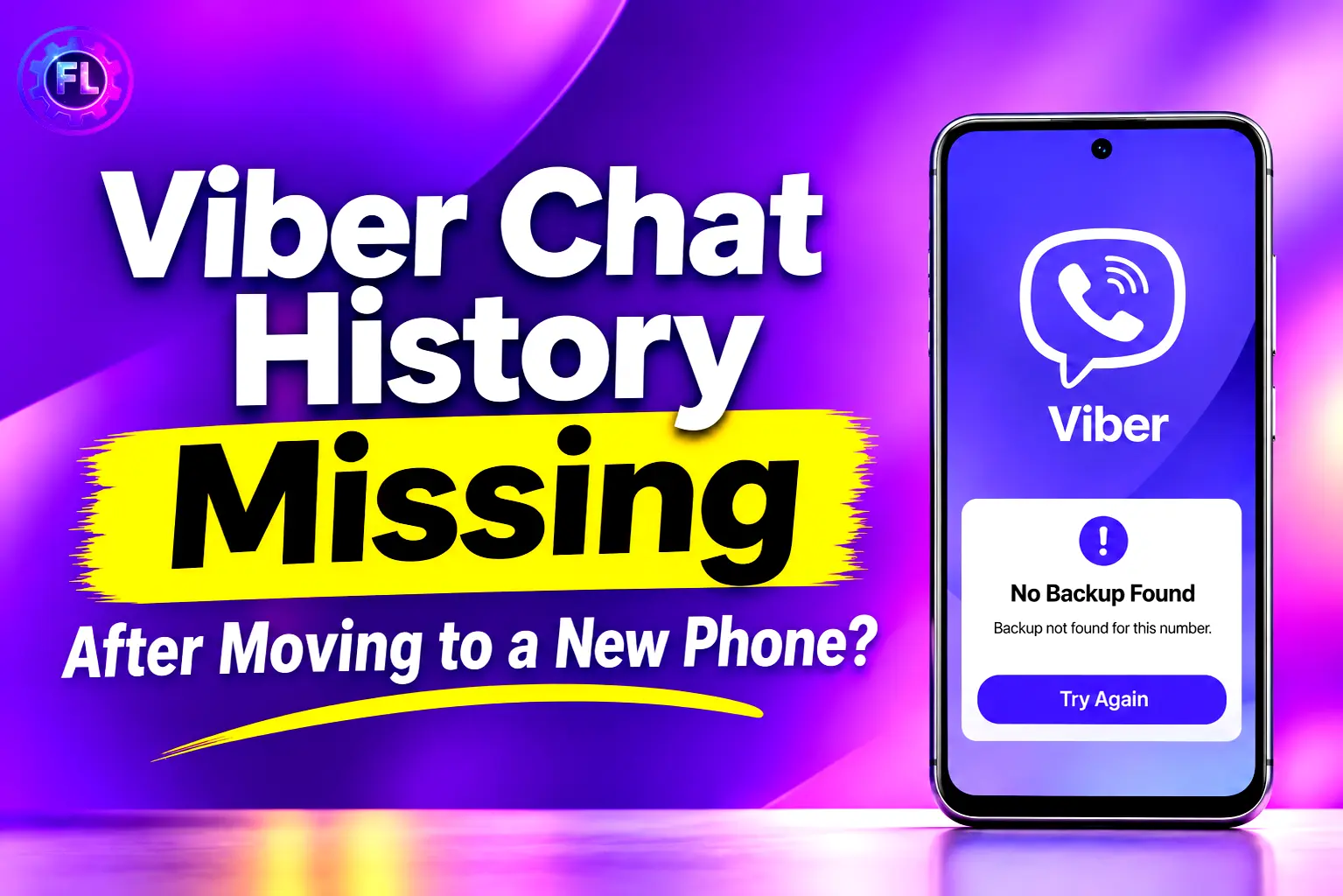
Viber Says No Backup Found
Work through the basics in this order:
- Check that you activated Viber with the same number as the old account. If you changed your number using Viber’s official New phone number and new device process, use your new number instead.
- Check that you are signed in to the same Google or Apple account.
- Make sure both phones run the same system.
- Confirm on the old phone that a backup was actually created.
If all four are correct, the backup may never have finished. In that case, the old phone and Wi-Fi transfer are your best remaining option.
Viber Restore Is Stuck or Does Not Complete
Give it time first, especially with large histories or many photos. If nothing changes after a long wait, check your connection, close and reopen Viber, then restart the phone. Make sure Viber is updated through the Play Store or App Store.
Avoid repeated uninstalling. It will not make a missing backup appear, and it adds risk.
Viber Chats Returned but Photos and Videos Are Missing
Check whether photos and videos were included when the backup was created. Viber lets you choose this when you back up, and media that was not included cannot be restored from that backup.
Viber Asked for a PIN During Activation
These are two different things. The activation code is a one-time code sent to your number by SMS or call to prove the number is yours. The PIN belongs to Viber’s 2-step verification, which you set up earlier for extra protection.
Enter the PIN you created. If you cannot remember it, tap Forgot PIN after entering your number and activation code. Viber sends an email you can use to confirm your identity and continue. Do not look for bypass tricks, as they can put your account at risk.
Frequently Asked Questions
Will my old Viber chats disappear when I activate Viber on another phone?
Activating Viber on a new phone deactivates it on the old one. That is why you should back up, or start the Wi-Fi transfer, before you do anything else on the old phone.
Can I restore my chats using Viber on a tablet or computer?
Usually not. Backup and transfer are not available on desktop or tablet, with one exception: a tablet that is your primary Viber device. If your primary device is a phone, use the phone for the steps in this guide.
Can I recover conversations if I never created a Viber backup?
Viber’s official recovery options are a backup or a direct transfer. If you have neither, there is no official way to bring chats back. If the old phone still works, try Wi-Fi transfer before doing anything else.
Why are my group memberships visible but their old messages missing?
Your account and group memberships come with your number. Message history is separate and returns only through a backup or a transfer. Seeing your groups is normal on a fresh setup, and it does not mean the history is still on the phone.
Does restoring Viber chat history also restore purchased stickers and Viber Out plans?
Restore them as a separate step in More > Settings > Account > Purchases. On Android, tap Restore subscriptions for Viber Out and Restore sticker packs for stickers. On iPhone, one Restore button covers both. Results can vary, for example when a purchase was made on a different platform or a free sticker pack is no longer available.
What to Do Next
Choose the path that matches your situation:
- Same system, old phone still working: Use Wi-Fi transfer. It is direct and does not depend on a cloud backup.
- Same system, cloud backup available: Activate with the same number, use the same Google or Apple account, and restore. Check the backup date first.
- Switching between Android and iPhone: Expect your account to move but not your chat history. Save what you need before parting with the old phone.
Whichever route you take, keep the old phone safe until you have opened your chats on the new one and confirmed everything you need is there.

- Signal & Viber Issues: Easy and Useful Troubleshooting Guide - November 25, 2026
- YouTube Mini Player Bug: Videos Shrink and Audio Stops? Quick Solutions - November 24, 2026
- Viber Chat Backup Not Restoring on a New Phone? Android and iPhone Guide - November 23, 2026