
Published: November 8, 2026
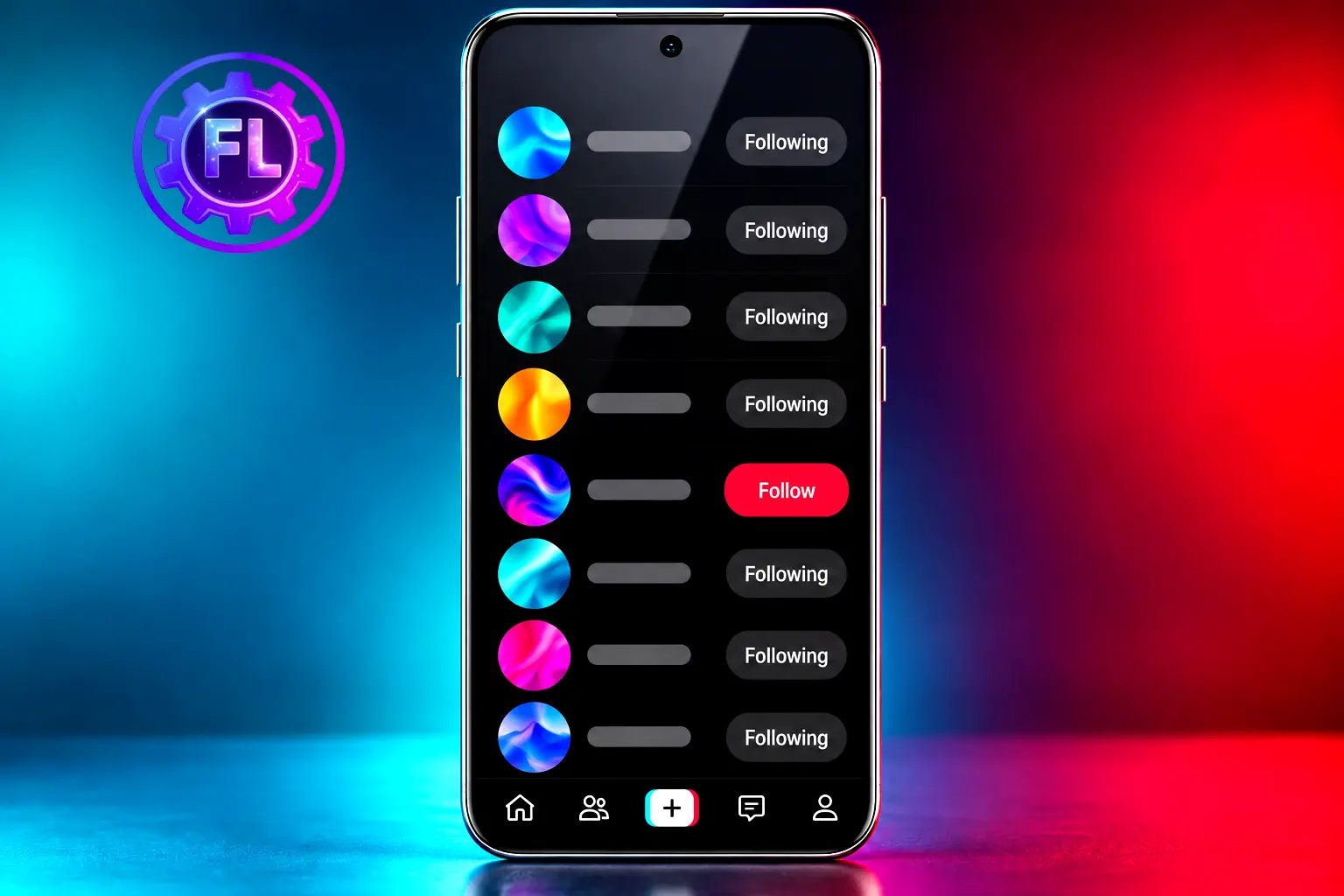
Some TikTok users have reported this issue. They say that when they follow an account, the “Following” button appears as normal, but after a while it changes back to “Follow,” even though they never chose to unfollow that account.
One thing to be clear about: TikTok has not publicly confirmed a bug that unfollows accounts on its own. What follows is a practical checklist built from user reports and TikTok’s own Help Center pages, not a claim that something is broken for everyone.
Quick Checks
These are simple first checks, not a guaranteed fix. Try them in order. Steps 1 and 3 are my own suggestions, not official TikTok steps.
- Pause following for a few hours. If TikTok shows a “following too fast” message, stop tapping Follow and wait for it to clear.
- Restart the TikTok app and your phone, then update TikTok. TikTok’s Help Center lists restarting the app and your device as the first troubleshooting step, followed by installing the latest version. This is general advice for app problems, not a fix made specifically for this issue.
- Run a quick test: follow one account, close TikTok, reopen it, and check your Following list. This shows whether the follow is being saved. It is not proof either way, so skip it if TikTok showed a “following too fast” message.
What Users Are Reporting
Public videos and comments on TikTok describe two slightly different problems. In the first, a person follows an account and later finds that the follow has disappeared. In the second, someone taps Follow Back on a new follower, leaves the screen, comes back, and sees that the follow was never saved.
These are individual reports, and I could not open the original posts to check their details, so I am describing them in general terms. They show that some people are running into this, but they do not tell us how many, or whether one cause explains all of them.
Why TikTok May Be Removing or Not Saving Follows
Nobody outside TikTok can say for sure, so treat these as possibilities, not proven causes.
A temporary activity restriction. TikTok’s Help Center has a following too fast notice, which you may see if you follow a lot of accounts very quickly. TikTok says that, to prevent spamming, it may disable a user’s account for 24 hours in that case. The same page lists separate “tapping too fast” and “commenting too fast” notices, but those are about liking and commenting, not following. The page does not say that a follow disappearing after a refresh is connected to this notice.
A follow that never gets saved. The button can change on your screen while the request fails to reach TikTok’s servers. When you refresh, the app shows the real state, and the follow is gone. This is an explanation, not something TikTok has confirmed.
Old data on screen. A slow connection or stored app data can make a list look different from what your account actually has.
Different devices, different views. If your phone and another device disagree, one of them may be showing out-of-date information.
How to Fix TikTok Automatically Unfollowing Accounts
1. Check for a warning
Look for a following too fast notice when you tap Follow. If you see one, TikTok says it may disable your account for 24 hours, so stop following for now and give it time. If you see no notice and the follow still vanishes after a refresh, TikTok’s page does not cover that situation, so the next steps are general troubleshooting.
2. Stop repeated follow and unfollow attempts
Tapping Follow again and again, or following and unfollowing the same account to test it, is not something TikTok’s pages address. But since following many accounts very quickly can bring up the “following too fast” notice, extra rapid taps are not worth the risk, and they make it harder to see what is going on. Try one follow, then leave it alone for a few minutes. This is a precaution, not an official rule.
3. Check your Following list again
Open your profile, tap Following, and look for the account. Wait a few minutes and pull down to refresh. This helps you check whether the account still appears in your Following list.
4. Update the TikTok app
TikTok recommends running the latest versions of both the app and your phone’s operating system. Update TikTok from the App Store or Google Play, then restart the app and the phone.
5. Clear the TikTok cache
Cache is temporary data, and clearing it can remove files that may be causing issues. Here is the path TikTok gives:
- Tap Profile, then the Menu ☰ button.
- Tap Settings and privacy, then Free up space.
- Tap Clear next to Cache, then confirm.
Your first video load afterward may be a little slower. Leave Drafts alone on that screen, because deleting them cannot be undone.
6. Check your following status on another device
This is not an official TikTok step, just a simple test. Log in on another phone or on TikTok’s website and look at your Following list. If the account shows as followed there, your phone may be showing old data. If it is missing there too, the follow may not have been saved. Only log in on devices you trust.
7. Report the problem to TikTok
If the problem continues, tell TikTok directly. Go to Profile, tap the Menu ☰ button, choose Settings and privacy, then Report a problem and pick the closest topic. Include your username, what happens when you tap Follow, roughly when it started, and your phone model and TikTok version.
If TikTok Keeps Unfollowing Accounts
If you have tried the steps above and nothing has changed, take a break from following anyone for a day or two. Then switch between Wi-Fi and mobile data to rule out a connection problem, and try a single follow.
Reinstalling the app is the last option. Be careful with it: drafts saved only on your phone can be lost when you uninstall. Post or save anything you care about first, and make sure you remember your login details.
Is This a Confirmed TikTok Bug?
No. At the time of writing, in November 2026, I did not find an official TikTok statement that acknowledges an automatic-unfollowing bug. What exists are scattered user reports and TikTok’s general guidance on its “too fast” notices and troubleshooting.
That does not mean your problem is not real. It means the cause is unproven, and the steps above are the safest way to narrow it down.
Frequently Asked Questions
Should I use an app that follows or unfollows accounts for me?
Automated follow and unfollow tools are best avoided. They may put your account at risk, especially if they require your TikTok login details or perform repeated actions.
Is there an official daily limit on how many accounts I can follow?
Some websites quote exact daily or hourly numbers, but I could not find any in the TikTok Help Center pages I checked, so treat those figures as unconfirmed. What TikTok does say is that following a lot of accounts very quickly may lead to a “following too fast” notice and a 24-hour account disable.
What if it only happens with one account?
On a private account, a follow request may need the owner’s approval before you become a follower. Check whether the button shows “Requested” or another status. If other accounts work normally, the issue may be limited to that particular profile.
Can I avoid the “following too fast” notice by following accounts slowly?
TikTok does not say what pace is safe, so nothing can be guaranteed. Its notice only refers to following a lot of accounts very quickly, so following a few at a time and stopping if you see a notice is a sensible approach.
A follow that keeps disappearing is annoying, mostly because it is hard to tell whether you did something wrong or the app did. Start with the simple checks: stop repeated taps, update, restart, and clear the cache. If nothing helps, report it to TikTok with clear details.

- Pixel 10 and 11 Camera Showing a Black Screen? How to Fix - November 13, 2026
- Microsoft Outlook Not Loading? What EX1550543 Means for Phone Users - November 13, 2026
- iOS 27.2.1 Security Fixes and What to Do If Your iPhone Feels Off - November 12, 2026