
Published: August 22, 2026
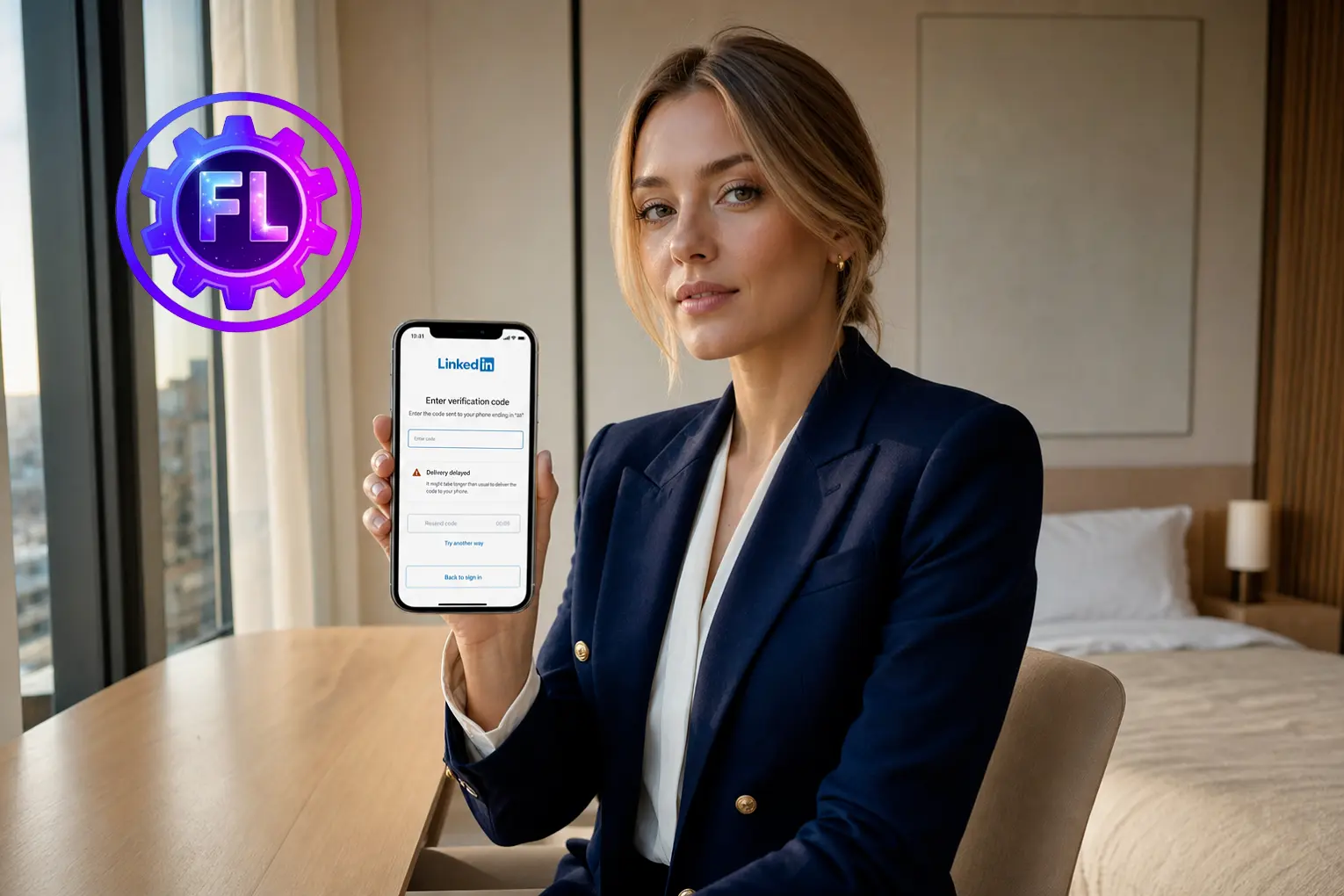
If you’re signing up for LinkedIn and the verification code hasn’t arrived even though LinkedIn says it was sent, don’t keep requesting it repeatedly. Multiple resend requests can cause additional delays. Check the timer on the screen and wait until the resend option becomes available again.
Usually, LinkedIn allows you to request another code after around 60 seconds. Once the timer ends, request the code again and check your email.
It’s also a good idea to close the LinkedIn app and clear its cache. After a short wait, open LinkedIn again and start the sign-up process from the beginning. If you continue with the previous request, the same delayed OTP may still cause a problem.
Check your Inbox, Spam, and Junk folders because the verification email can sometimes be filtered there. If you find it in Spam or Junk, mark it as Not Spam so future LinkedIn emails are more likely to reach your inbox.
Fix Now
If you want to continue with the current sign-up process, click Sent code and check your email folders. Once the OTP arrives, enter the same 6-digit code to complete verification.
If the previous request is still delayed, start a new sign-up process. Open the LinkedIn website or app, click Sign Up, and enter your email, password, First Name, Last Name, Location, About You, and Company/Employer.
After entering your details, confirm your email and click Resend Code. LinkedIn should send a new message confirming that a new PIN code was sent to your email. Enter the 6-digit code to continue.
If LinkedIn asks you to Share your goals, complete this section if needed or select Skip away and continue.
You can also create an account using Continue with Google, Sign in with Microsoft, or Sign in with Apple. If you choose one of these options, LinkedIn will redirect you to the selected service to complete sign-up, and you can use the same option to log in later.
Why the Code Doesn’t Show Up
If the LinkedIn verification code does not arrive, the problem may be with the SMS or email delivery rather than LinkedIn itself. Your mobile carrier can sometimes delay automated text messages.
In some cases, LinkedIn may ask for a different verification step if its security system needs to verify your signup or sign-in attempt. This does not happen to everyone. If you see another verification option on the screen, follow the instructions shown there instead of waiting for a code that LinkedIn is no longer asking you to enter.
Fix 1: Confirm the Contact Info Tied to Your Account
If you’ve changed your phone number or email and no longer have access to the old one, LinkedIn may still be sending the login code there. To check which contact details are linked to your account, click your profile photo in the top right, select Settings & Privacy, and check the contact information listed there.
On the mobile app, tap your profile photo, then Settings, and look under Sign in & security. If the phone number or email listed there is outdated, that could be the reason you’re not receiving the code.
Fix 2: Try the Other Delivery Method
If you have both a phone number and an email linked to your account, try the other option instead of repeatedly requesting the code through the one that isn’t working. For example, if the text isn’t coming through, choose email on the sign-in screen. The code may reach you there if your carrier is filtering the text or the email ended up in spam.
Fix 3: Rule Out a Carrier-Side Delay
If texts never arrive no matter how many times you request them, the delay is often on the carrier’s end rather than LinkedIn’s. Confirm you have a normal signal for regular SMS, try requesting the code again after a few minutes, and if you’re on a VoIP-style number, such as Google Voice, keep in mind that some of these numbers receive automated verification texts less reliably than a standard mobile line.
Fix 4: Update the LinkedIn App
An outdated app can also cause these kinds of problems, especially when LinkedIn changes its sign-in security rules. Update LinkedIn from the Google Play Store on Android or the App Store on iPhone. If updating doesn’t work, uninstall the app and install it again to get the latest version.
Fix 5: Look for an Emailed Sign-In Link Instead of a Code
If you haven’t received the code, check your email to see if LinkedIn has sent you a sign-in link. If the link is there, click it to continue. This lets you complete the process without entering the verification code.
The Cause Most Guides Skip
When LinkedIn detects unusual activity, such as a new device, a new location, or several failed sign-in attempts, it can affect the verification process. If the code still doesn’t arrive after several attempts, stop requesting it, wait a little while, and then start the sign-in process again from the beginning.
When Nothing Works
If you’ve tried all the fixes and the problem still isn’t resolved, account recovery may be your last option. Through the recovery process, you can verify your identity and work toward regaining access to your account. If you need this option, use LinkedIn’s official account recovery and identity verification help page. For more help with other social and phone-related issues, you can also find them on FixerLab.

- Galaxy S26 Ultra Wireless Charging Stuck at 10W/15W - September 17, 2026
- How to Fix Google Maps Showing Wrong Directions and Inaccurate Location - September 13, 2026
- iPhone 16 Camera Not Working? Fix Black Screen, Crashes & Blurry Photos - September 9, 2026
